One button — Connect WhatsApp — opens a single guided Meta window that covers your Business Portfolio, your WhatsApp Business Account, and your phone number, whether each of those already exists or needs to be created. If you use the WhatsApp Business app on your phone, you can keep using it while Cysora connects the same number through Cloud API. Personal WhatsApp numbers work differently: they can be used either on your phone or through Cloud API, not both.
Business app coexistence Cloud API connection Personal number warning
Choose the right WhatsApp number
Which number should I use?
Choose based on where the number is active today. This decides whether you keep phone-app access or move the number fully to Cloud API. Every option below starts from the same Connect WhatsApp button.
Recommended
Business WhatsApp number on my phone
Use this if customers already message your WhatsApp Business app. Cysora connects the same number to Cloud API, so you can keep using the Business app on your phone while automation runs in Cysora.This is coexistence.
Use this if you do not want to use your current number. The same guided Meta window lets you add a brand-new number as part of Connect WhatsApp — there is no separate step or product.
A personal WhatsApp number cannot run on your phone and Cysora Cloud API at the same time. You must choose one: keep it in the WhatsApp app, or move it to Cloud API for Cysora.
The Facebook or Meta login used to manage your business.
Access to receive SMS or a phone call on the number you want to connect.
1
Step 1
Start from Cysora
Sign in to Cysora and open Go live - WhatsApp. Click the single Connect WhatsAppbutton. Cysora opens Meta's secure signup window, which handles your business portfolio, WhatsApp Business account, and phone number in one flow.
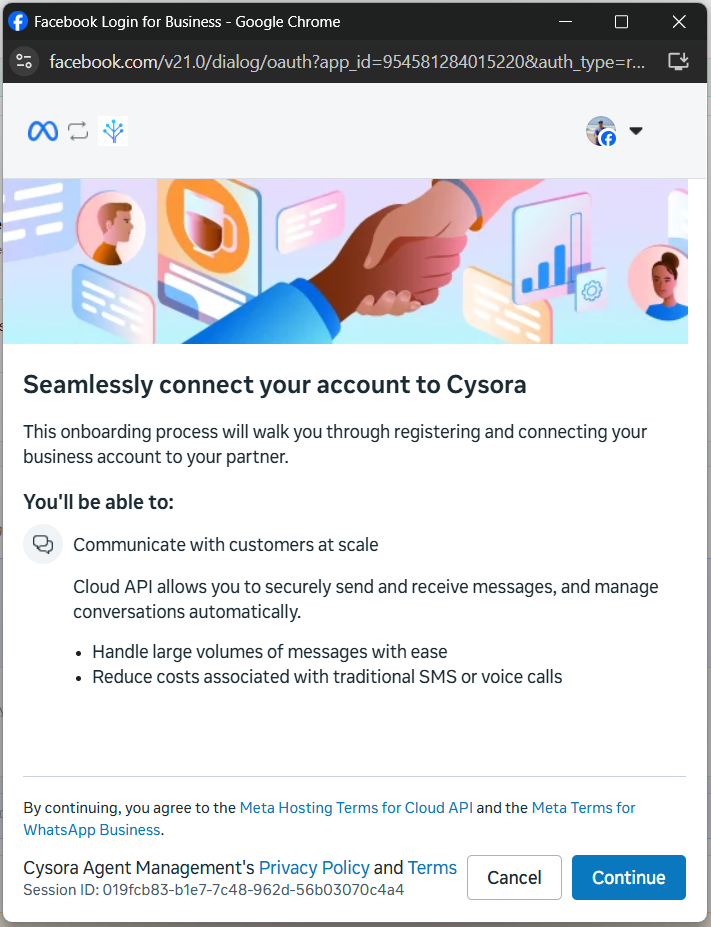
Meta opens a secure connection window for Cysora. Review the partner name and click Continue.
Click Continue to start connecting your WhatsApp Business account to Cysora.
3
Step 3
Choose your business portfolio and WhatsApp account
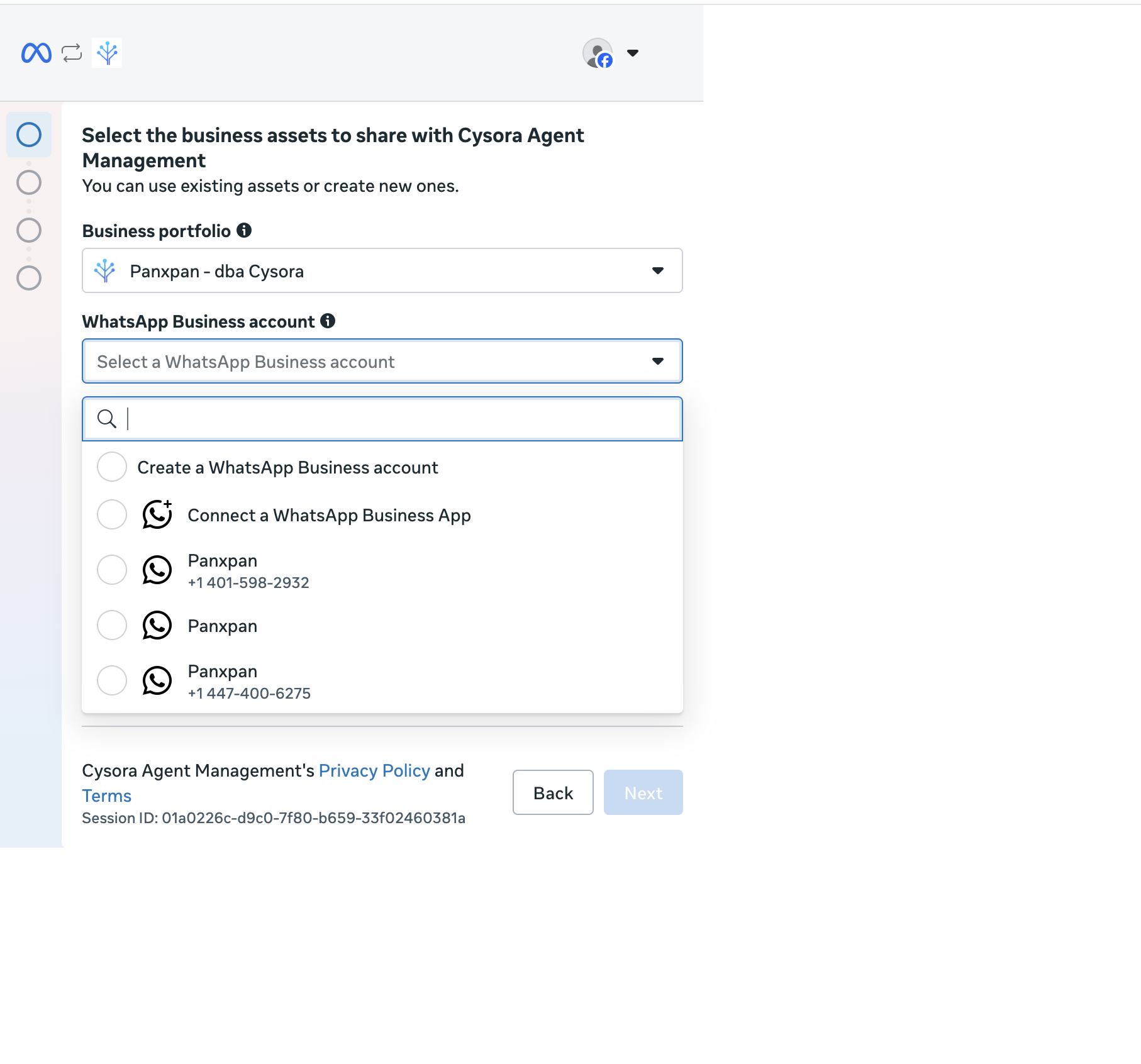
Choose the Business portfolio that should own this connection, or create a new one if you do not manage one yet.
Pick the business portfolio for the number, or create a new one.
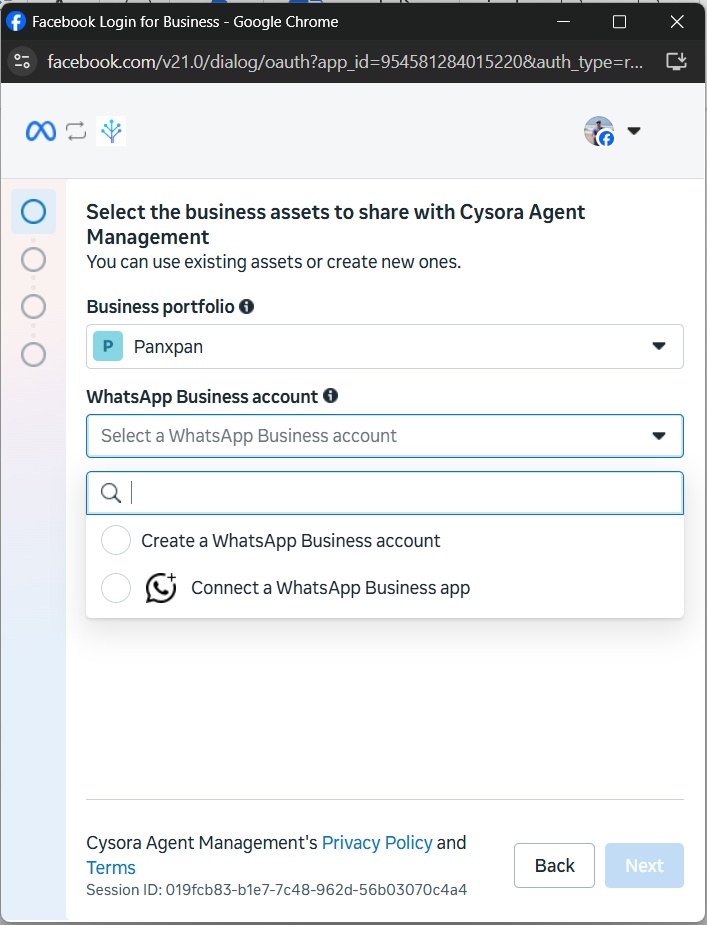
Then choose the WhatsApp Business account under that portfolio. If you already run WhatsApp Business there, Meta lists it — select it. Otherwise choose Create a WhatsApp Business account.
Select an existing WhatsApp Business account from the list, or create a new one.
4
Step 4
Confirm business information
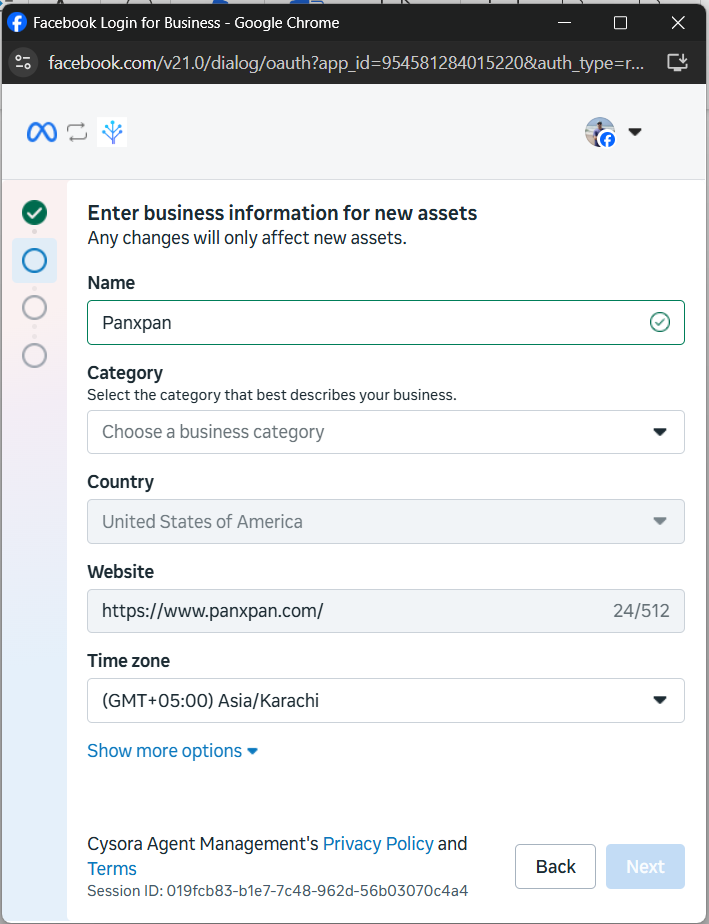
If Meta is creating new assets, review the business name, category, country, website, and timezone — these details help Meta label the new portfolio or account correctly. This screen does not appear when you selected assets that already exist.
Confirm the business information Meta will use for new WhatsApp assets.
5
Step 5
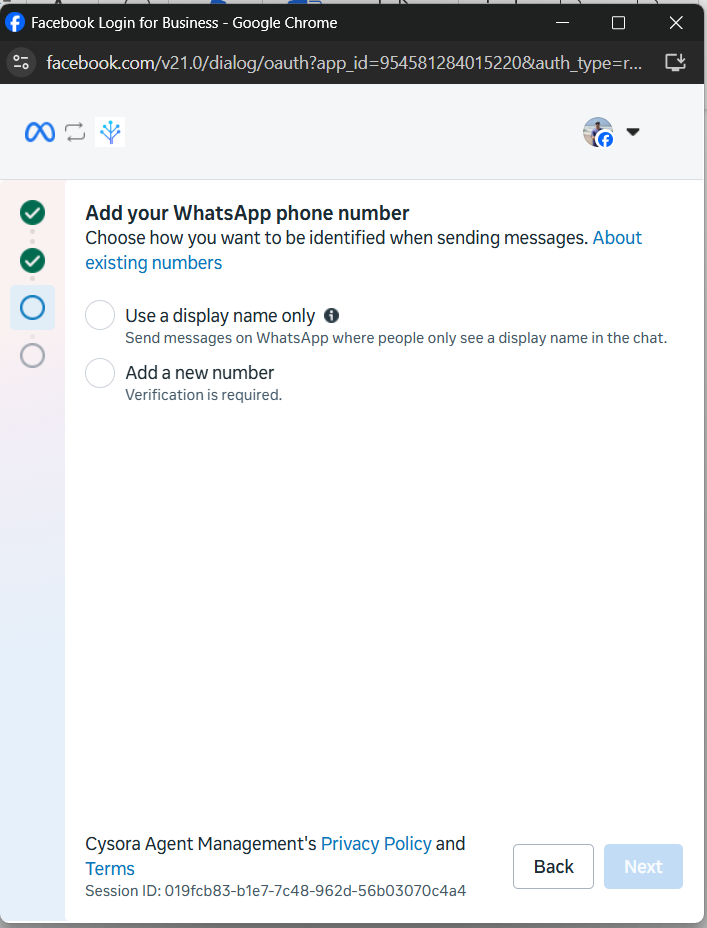
Choose your phone number
Meta shows two ways to be identified when sending messages:
Use a display name only —customers see your business name in the chat rather than a phone number. Choose this if you do not want to dedicate a phone number.
Use a new or existing WhatsApp number —select a number Meta already lists under this WhatsApp Business account, or add a brand-new number.
Choose a display name only, or use a new or existing WhatsApp number.
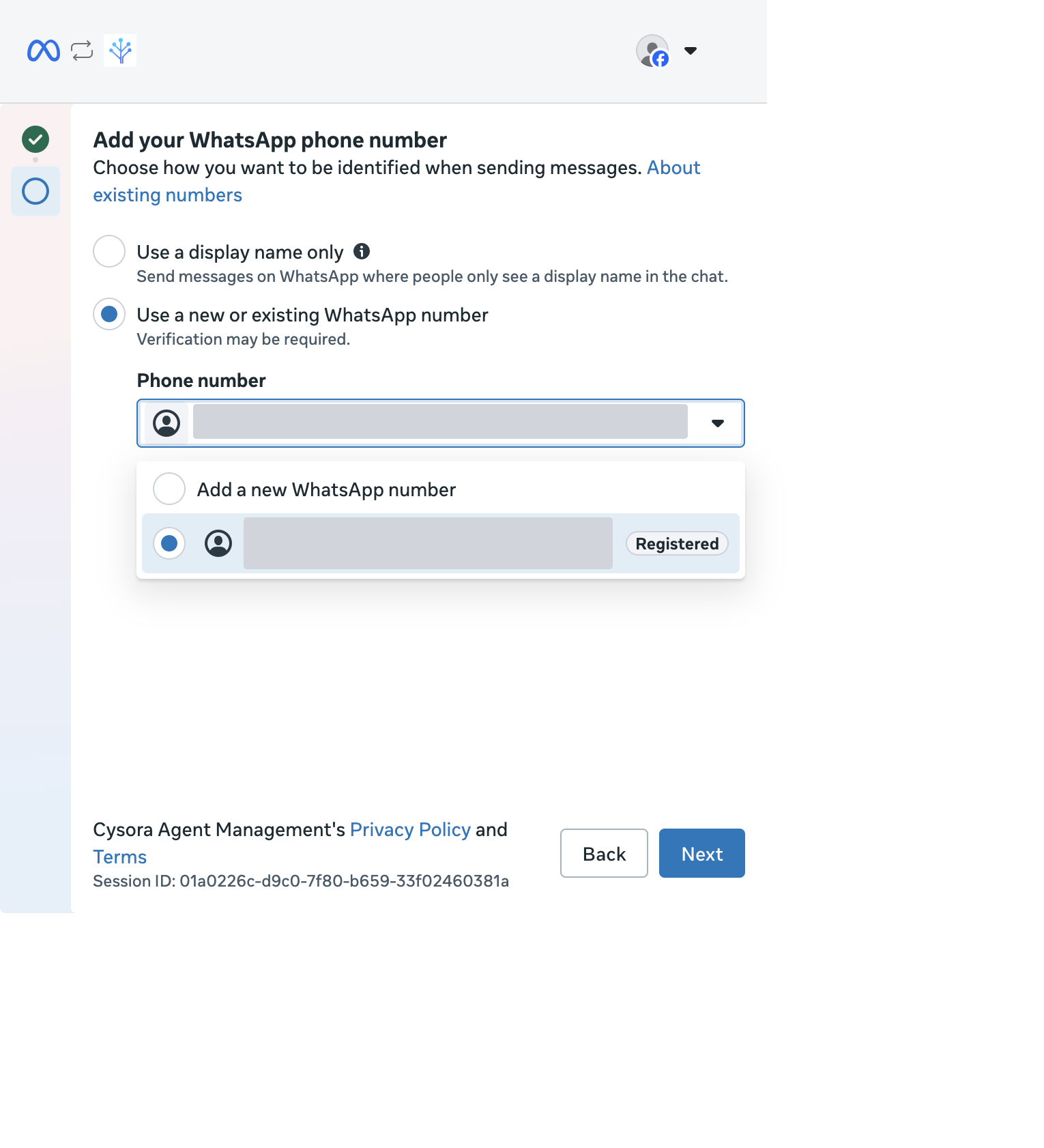
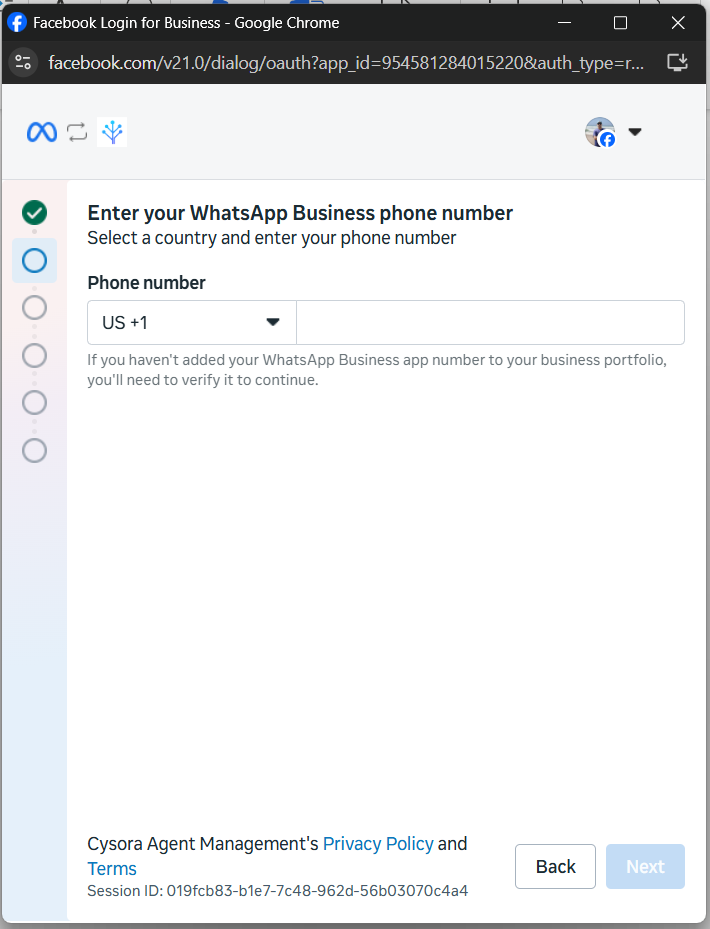
If you chose Use a new or existing WhatsApp number, pick a number already registered on the account, or select Add a new WhatsApp numberand enter the country code and number you want to connect.
Select a registered number from the account, or add a new WhatsApp number.Enter the country code and phone number you want to connect.
Do not use a personal WhatsApp number unless you are ready to stop using it in the phone app. Personal WhatsApp cannot coexist with Cysora Cloud API on the same number.
6
Step 6
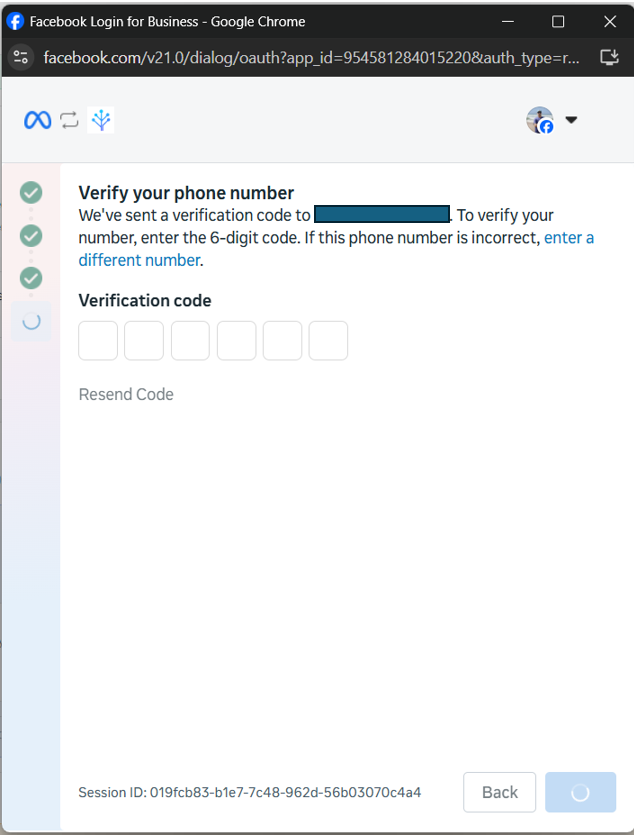
Verify the phone number
For a new or unverified number, Meta sends a 6-digit verification code by SMS or call. Enter the code before it expires. If the number is wrong, go back and enter the correct number. This step is skipped for a number that is already verified on the account.
Enter the 6-digit code Meta sends to the WhatsApp Business number.
7
Step 7
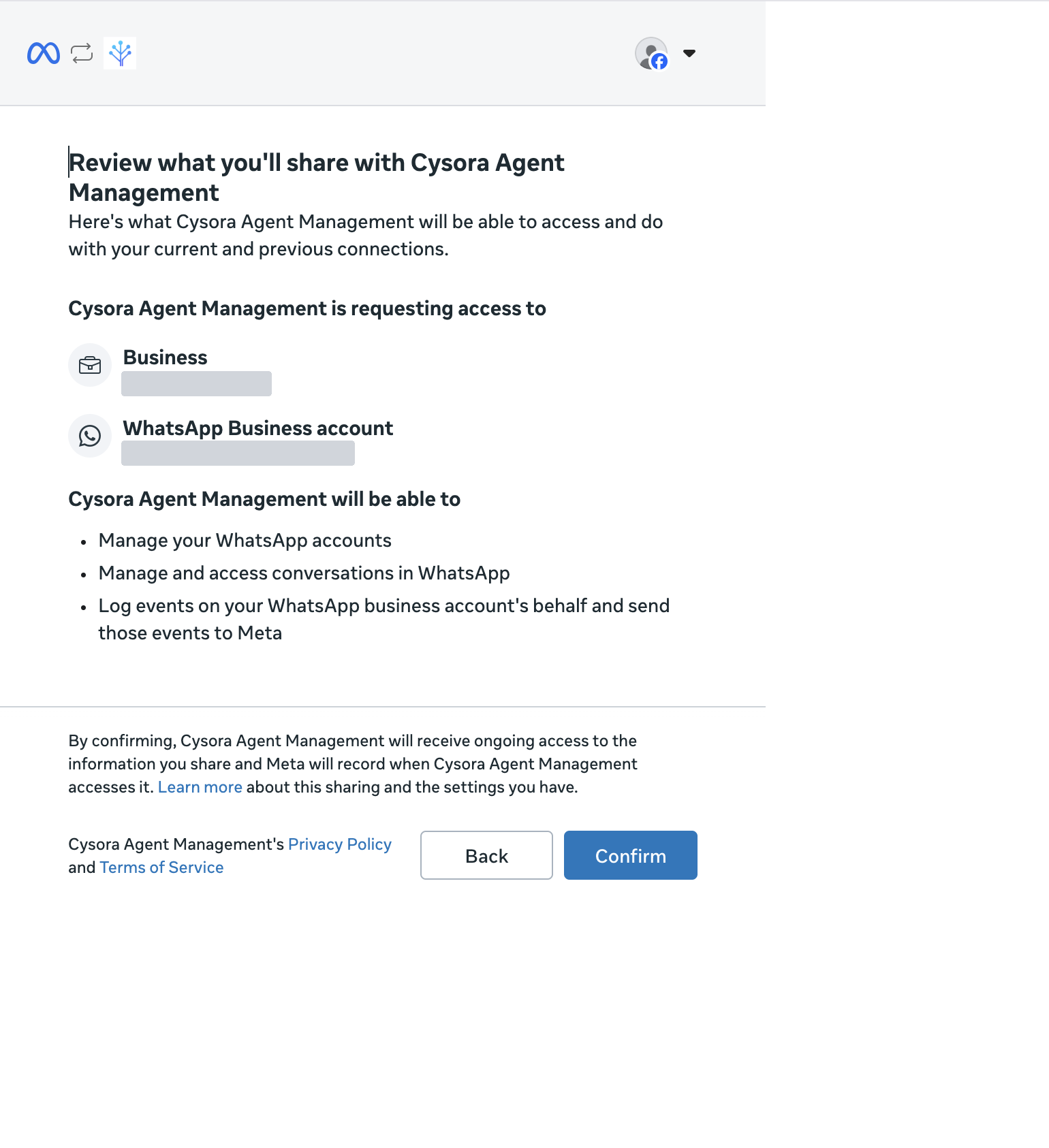
Review and confirm access
Meta shows exactly what Cysora will be able to access and do: manage the selected WhatsApp Business account, manage and access conversations, and log events on the account's behalf. Review the business and WhatsApp Business account named on this screen, then click Confirm.
Confirm the business and WhatsApp Business account Cysora will connect to.
8
Step 8
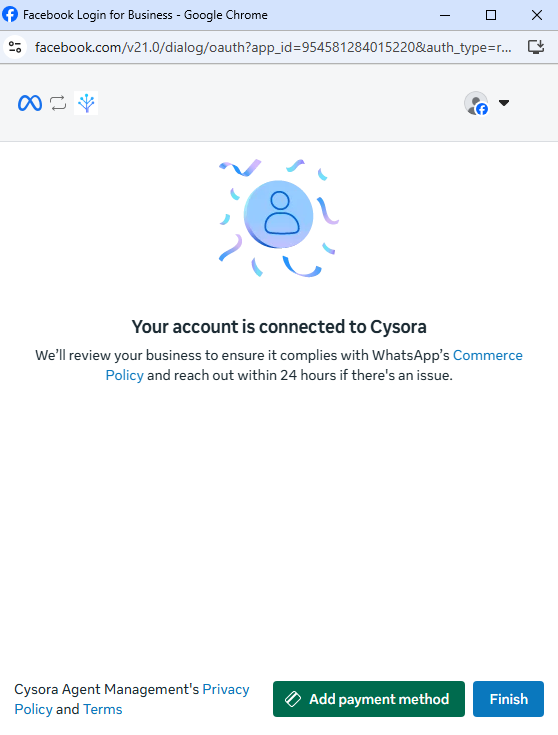
Finish and test in Cysora
After Meta finishes, Cysora validates the number, subscribes the WhatsApp account to Cysora webhooks, and registers the number for Cloud API messaging. The dashboard will show when WhatsApp is connected.
When Meta shows this success screen, click Finish and return to Cysora.
Before sharing the number with customers, test the connected agent yourself and confirm that it replies the way you expect.
For the current Cysora setup, you do not need to click Add payment method. Click Finish. Cysora's agent responds to customers after they message you, and those service replies are free within Meta's 24-hour customer service window.
WhatsApp template messages are different. If you later send proactive outbound templates, marketing templates, authentication templates, or messages after the 24-hour window closes, Meta may charge for those delivered messages and may require a payment method in WhatsApp Manager.
If Meta asks for something different
Meta sometimes shows different screens for different businesses. Do not guess or change unrelated settings. Send Cysora a screenshot with tokens, phone numbers, and IDs hidden, and we will guide you.