
Help / Manage Cysora from AI tools
Create API keys for developers
A secret API key lets your own software call Cysora's REST API, for example to copy new leads into another system. Each key has its own access, and the key is shown only once.
What you need
- Someone comfortable running server-side code.
- An account admin to create keys.
Create a key
- 1
Open API Keys & MCP
In the sidebar, open the Advanced section and choose API Keys & MCP.
- 2
Start a key
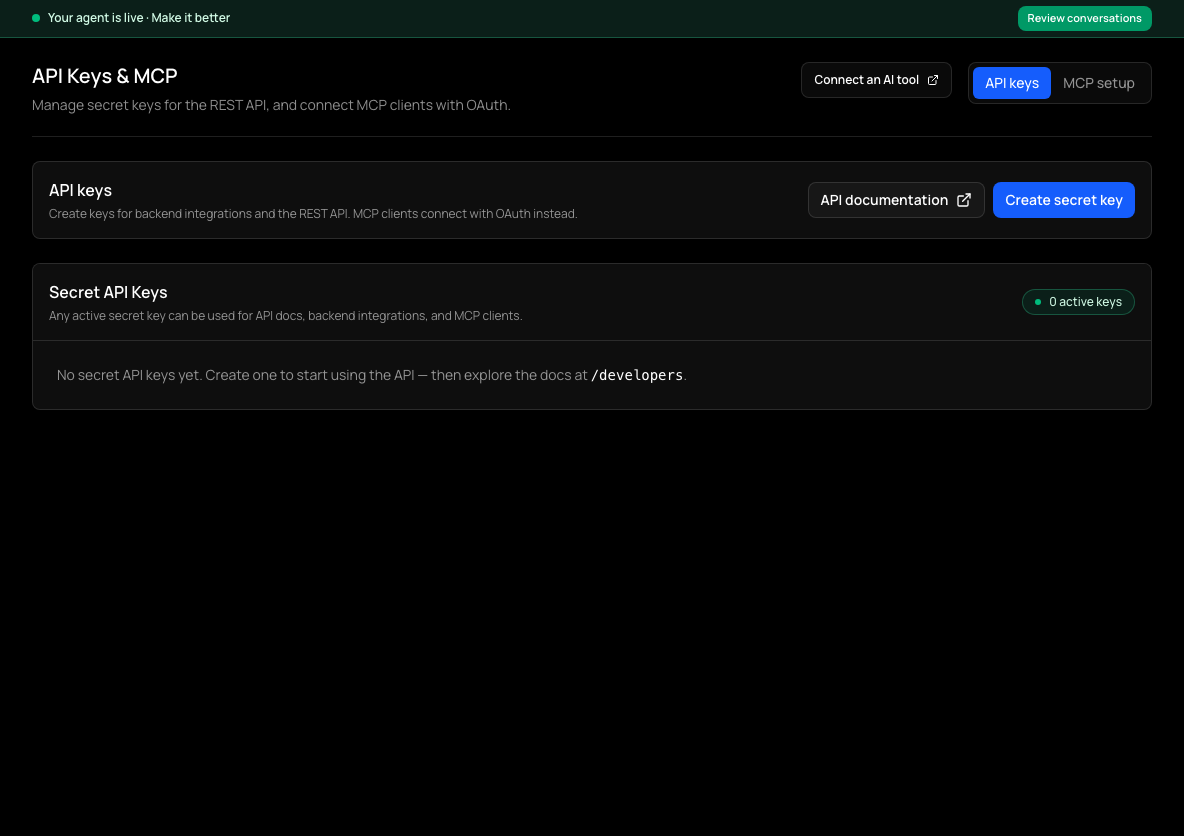
On the API keys tab, choose Create secret key, then name it after what will use it.
- 3
Choose access
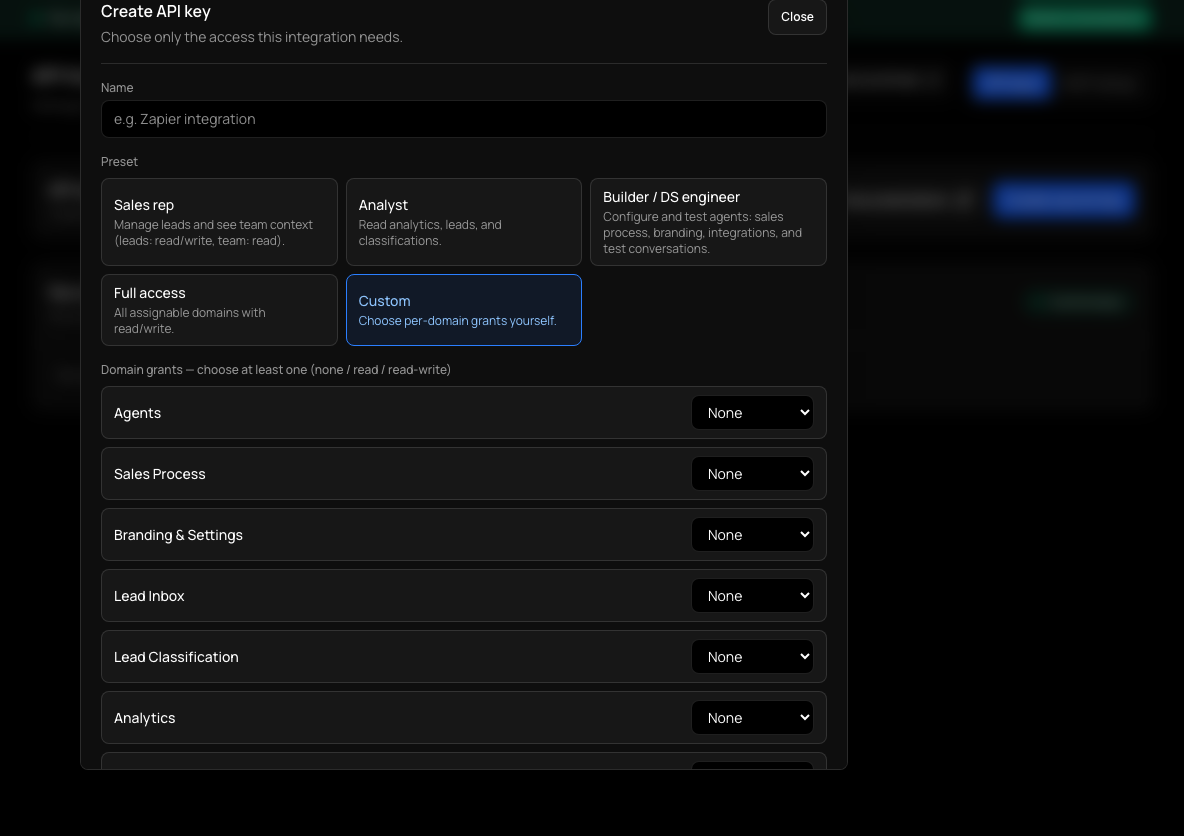
Pick a preset (Sales rep, Analyst, Builder / DS engineer or Full access) or choose Custom and set none, read or read / write per area. Give each key the least it needs.
- 4
Copy it now
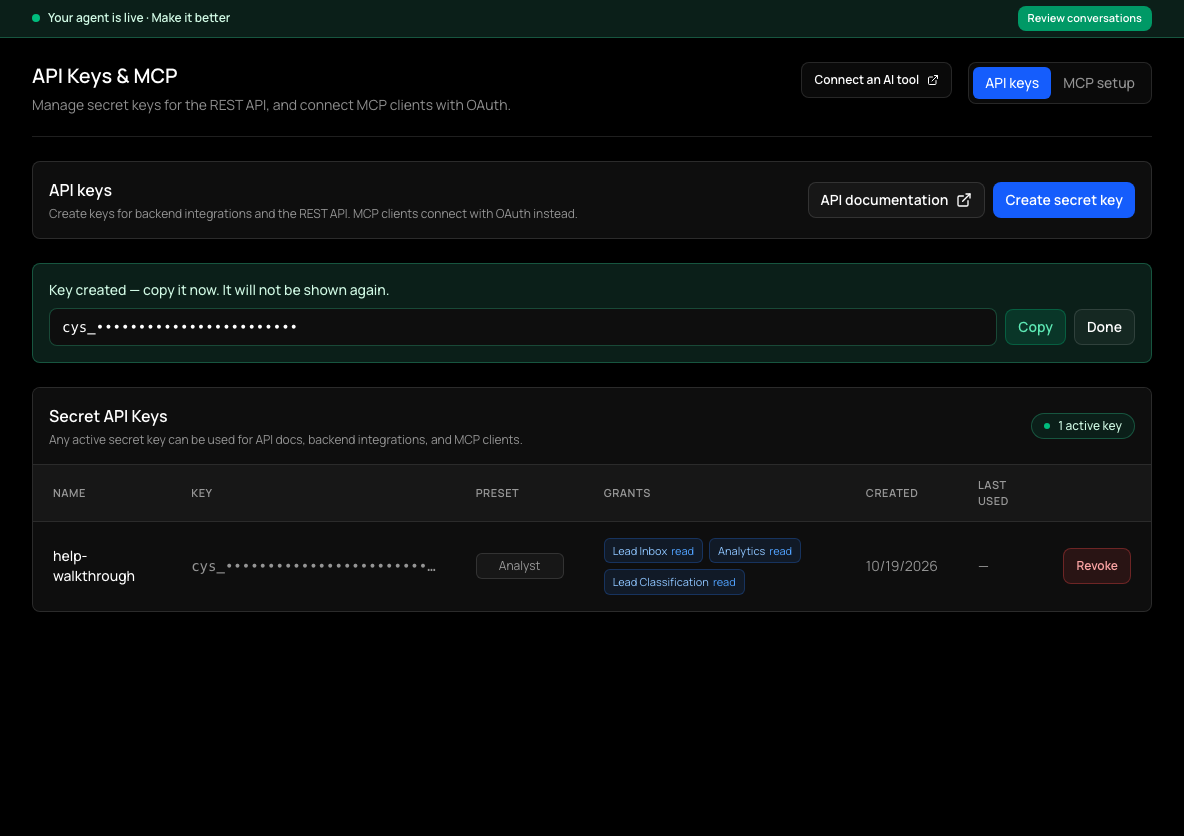
Choose Create key. The key appears once with Copy and Done buttons: copy it now, because it will not be shown again. Store it in your server's environment.
Use the key
Send it as an Authorization: Bearer header, or as an x-api-key header, on requests to the Cysora API. Keep it on your server: never put it in a website or app that visitors can read.
Revoke a key
Choose Revoke on the key in the list and confirm. Anything still using it stops working straight away. A revoked key can then be deleted from the list.
Check it worked
- Your first request with the key returns data instead of an authorization error.
If it doesn't work
- A request is refused with a permission error.
- The key's access doesn't include that area, or only has read access for a change. Create a new key with the access it needs.
- You lost the key.
- It can't be shown again. Create a new key and revoke the old one.
- You want to connect Claude or another AI tool.
- Use the MCP connection instead; MCP doesn't accept keys.