
Help / Manage Cysora from AI tools
Manage Cysora from Claude or ChatGPT
Connect Claude, ChatGPT or another AI tool to your Cysora account so you can ask it about your leads, review conversations, or change your agent's settings, within the access you choose. It connects with a sign-in, not a pasted key.
What you need
- An AI tool that supports remote MCP connectors with sign-in (OAuth), such as Claude, Claude Code, Cursor or ChatGPT.
- A Cysora account admin to approve the connection.
Connect it
- 1
Open API Keys & MCP
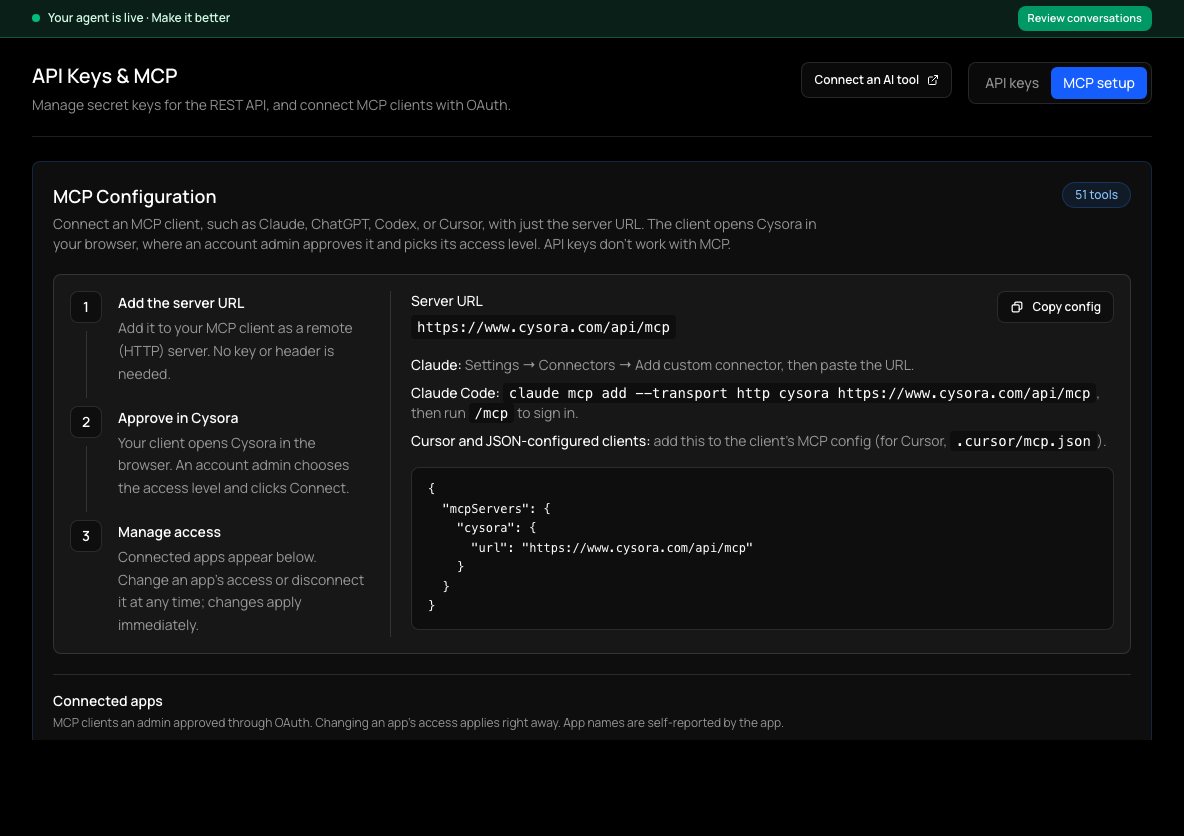
In the sidebar, open the Advanced section and choose API Keys & MCP, then the MCP setup tab.
- 2
Copy the server URL
Copy the Server URL shown there (Copy config copies a ready-made config). It ends in /api/mcp.
- 3
Add it to your AI tool
In Claude or Claude Desktop, go to Settings, then Connectors, then add a custom connector and paste the URL. In Claude Code, run the command shown on the page, then use /mcp to sign in. In Cursor and other JSON-configured tools, add the URL to the tool's MCP config.
- 4
Approve in Cysora
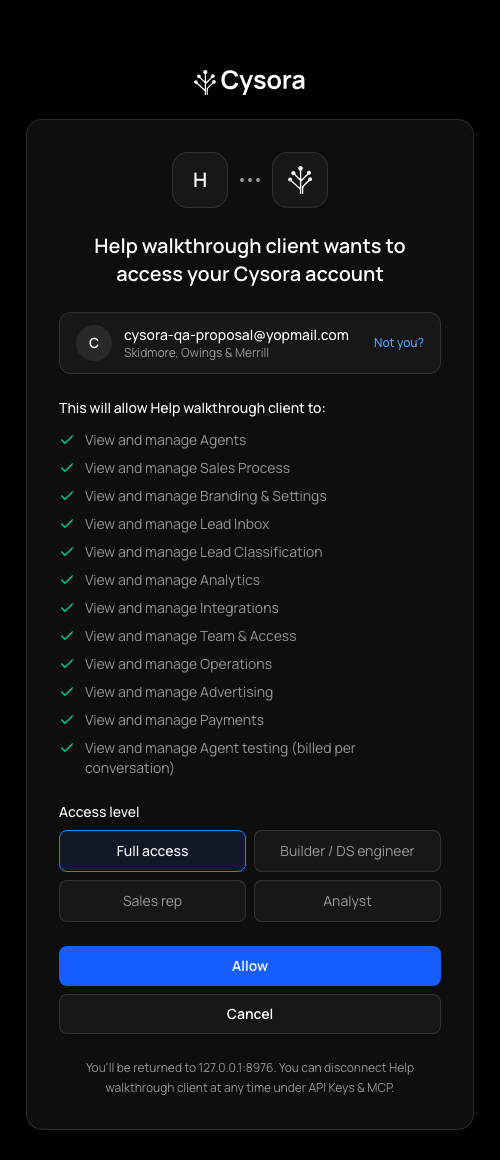
Your tool opens a Cysora page. Sign in, check the account shown (Not you? switches it), choose an access level, and choose Allow. Cancel refuses it. Only an account admin can approve.
- 5
Done
Your tool is connected. You can disconnect it at any time under API Keys & MCP.
Choosing an access level
- Full access: everything the connection can reach, read and write. Preselected.
- Builder: configure and test agents: sales process, branding, integrations and test conversations.
- Sales rep: manage leads and see team context.
- Analyst: read analytics, leads and classifications only.
Review, change or remove a connection
On the same page, Connected apps lists each connection with its access and when it was last used. Choose Manage access to change its level (it applies on the app's next request) or Disconnect to remove it immediately.
Two things people mix up
- This guide is for you managing your own account from an AI tool. To let your customers' AI assistants reach your agent, see the AI assistants guide.
- MCP connects by sign-in only. API keys don't work for MCP. Keys are for the REST API (see the API keys guide).
Check it worked
- Connected apps lists your tool.
- Ask your AI tool to list your agents; it answers with your real agents.
If it doesn't work
- The approval page says you can't approve.
- Only an account admin can approve a connection. Ask an admin, or have your role changed on Team & access.
- A tool you expected is missing.
- Check the connection's access under Manage access. Only grant the areas you need. Some dashboard actions are not exposed to MCP at any access level; use Cysora directly for those.
- Your tool only accepts an API key.
- It can't connect to Cysora MCP, which uses sign-in. Use the REST API with a key instead.
Related guides
- Create API keys for developersCreate a secret key with limited access for your own software to call the Cysora REST API.
- Let customers' AI assistants reach your agentCheck and control how a customer's ChatGPT or Claude can find your agent from your website.
- Invite your teamInvite teammates, choose their role, and decide which agents they can see.