
Help / Lead sources
Message Meta lead-form leads on WhatsApp
When someone submits one of your Meta (Facebook or Instagram) lead forms, your agent can message them on WhatsApp straight away and add them to your Sales pipeline. This feature is a pilot, so some steps are completed with Cysora.
What you need
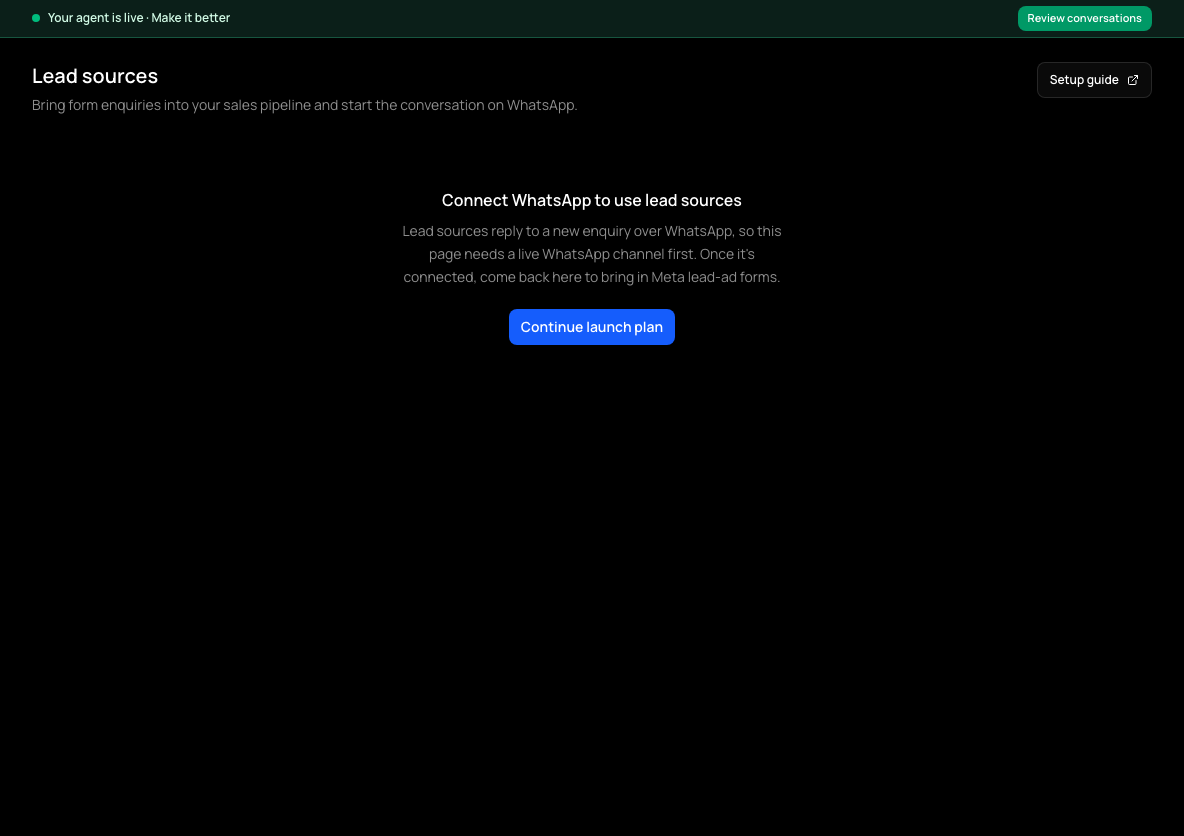
- WhatsApp connected for this agent. The Lead sources page stays closed until it is (see Connect WhatsApp).
- A Meta Business account that owns your Facebook Page, ad account and WhatsApp Business Account.
- A Meta lead form (instant form) on a Facebook Page.
- An approved WhatsApp message template, created in WhatsApp Manager, for the first message.
Share your Meta assets with Cysora
- 1
Open Lead sources
In the sidebar, choose Lead sources. Until WhatsApp is connected the page tells you to connect it first. After that, the status at the top reads Meta not connected, Meta needs access or Meta connected.
- 2
Add Cysora as a partner
In Meta Business Settings, open Partners and add Cysora using the Business ID shown on the page. Choose Open Business Settings to get there.
- 3
Share your assets
Assign your Facebook Page, ad account and WhatsApp Business Account to Cysora. Give lead access, not Admin: Cysora never needs billing or user control.
- 4
Check again
Back in Cysora, choose Check again. Cysora finds what you shared and confirms it belongs to your business. You don't type any IDs.
Set up the source
- 1
Connect a lead source
Choose Meta lead ads, then pick the Campaign (or all campaigns using the form) and the Lead form.
- 2
Map lead details
Match the form's answers to the contact fields in Sales pipeline: name, phone and email.
- 3
Confirm consent
Say which form answer shows the person agreed to be contacted on WhatsApp, or confirm you collect that consent in the form. Cysora only messages people with affirmative consent.
- 4
Choose the first message
Pick your approved WhatsApp Message template. For each variable in it, choose a Form answer, or Fixed text, and an optional fallback if an answer is missing.
- 5
Save source
Choose Save source. A complete setup is saved as Paused.
Activate it
A paused source receives nothing: no leads come in and no messages go out. Choose Activate on the saved source. Cysora first rechecks your WhatsApp sender, access to your Page and the template, and tells you if something is missing. Use Pause any time; pause the source before choosing Edit setup.
What happens to a new lead
- The enquiry is added to your Sales pipeline, whether or not a message is sent.
- Your template is sent only if the person gave consent, the form was submitted in the last hour, they weren't already messaged on this agent in the last 24 hours, and every template variable has a value.
- If they reply, your agent continues the conversation on WhatsApp, with the form answers as context.
- The first message is billed as one conversation once it is delivered.
Check it worked
- The source shows as Active on Lead sources.
- Submit a lead using your own contact details and affirmative WhatsApp consent. This is a live submission, not a free dashboard test: it can send a real WhatsApp message and incur a conversation charge. Confirm it appears in Sales pipeline and inspect its delivery status on Lead sources.
If it doesn't work
- The page asks you to connect WhatsApp first.
- Lead sources reply over WhatsApp, so connect it on Go live, then come back.
- Status says Meta needs access.
- Cysora can see your Page but can't read its forms. Check lead access is shared, then choose Check again.
- A template can't be selected.
- It must be a body-only template in your connected WhatsApp Business Account. A pending template can be saved but not activated until Meta approves it.
- Leads arrive but no message is sent.
- A message is skipped without consent, for older submissions, for repeat numbers, or when a variable has no value. Check the lead in Sales pipeline, and your credit balance on Billing & credit.
- A red alert says Cysora cannot read your lead forms, or messages aren't delivered.
- Open Lead sources to fix the access or template. See Fix a broken integration.
Related guides
- Connect WhatsAppConnect your WhatsApp number through Meta's signup window so your agent can answer WhatsApp messages.
- Follow up leads in Sales pipelineSet each customer's stage, owner and next follow-up, and read their conversation.
- Fix a broken integrationUnderstand the red alert in your dashboard and where each problem is fixed.