
Help / Run your agent
Follow up leads in Sales pipeline
Sales pipeline is where you follow up with customers who shared their details or booked a call: who owns each one, what stage they're at, and what to do next. Conversations shows what they said; the pipeline shows who to follow up with.
What you need
- At least one customer who has shared their details or booked a call.
Work a lead
- 1
Open Sales pipeline
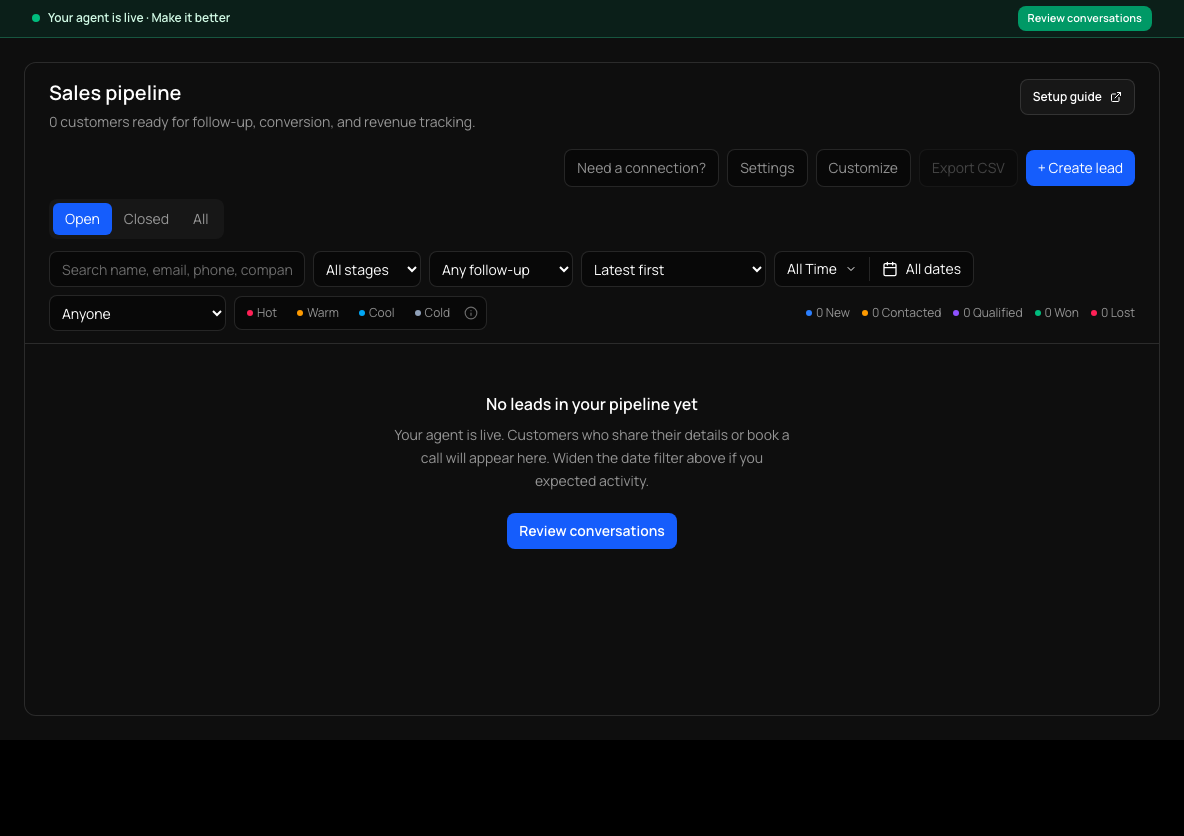
In the sidebar, choose Sales pipeline. It shows the agent selected in the header. Use Open, Closed or All to filter, and the stage, follow-up and owner filters to narrow down.
- 2
Open a lead
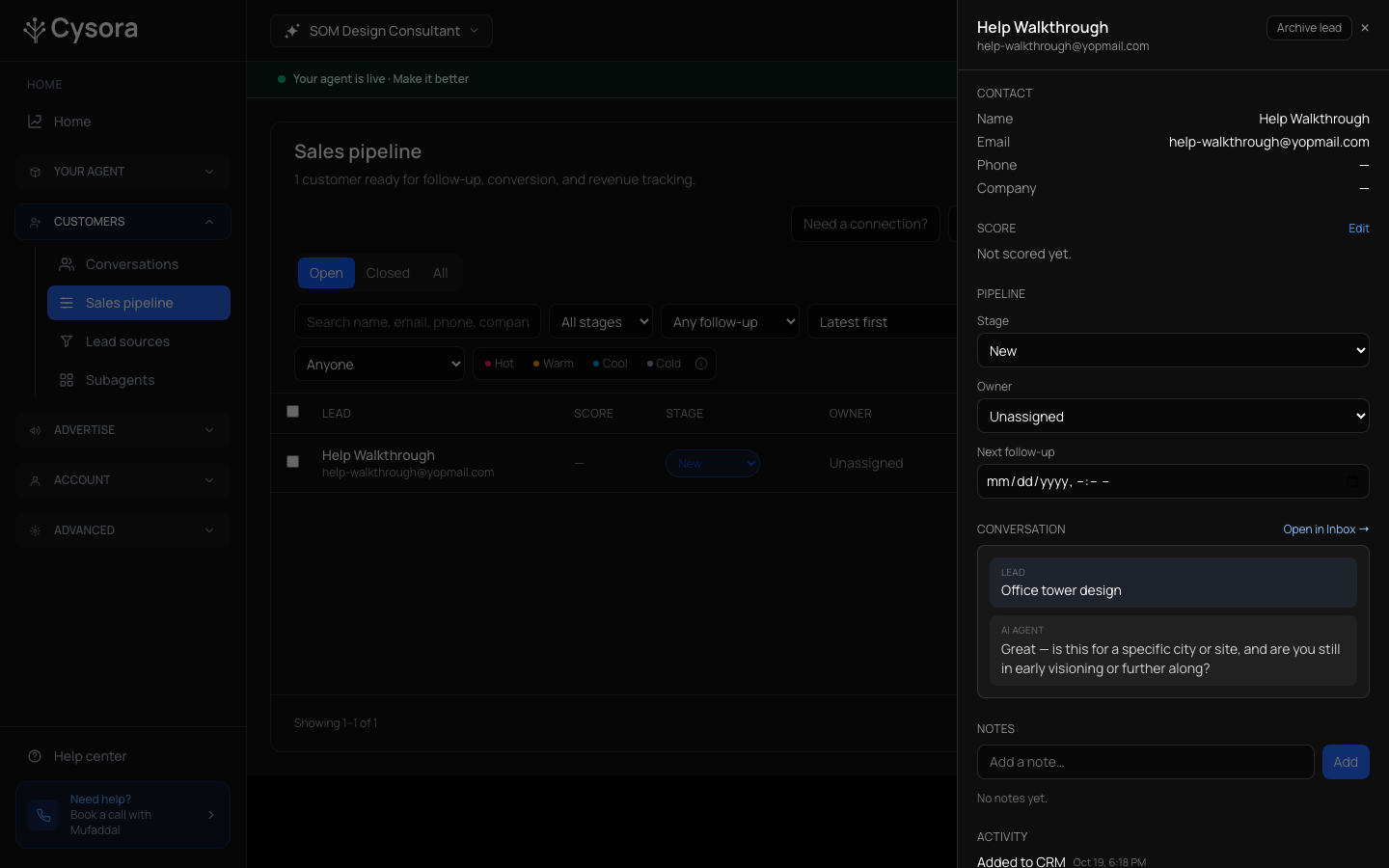
Select a lead. A panel opens with Contact details, Score, Pipeline, the Conversation, Notes and Activity.
- 3
Set the stage
Under Pipeline, use Stage to move them through New, Contacted, Qualified, Won or Lost.
- 4
Assign an owner
Use Owner to say which team member follows up. Filter by Owned by me to see your own.
- 5
Set the next follow-up
Choose a date and time under Next follow-up so nothing is forgotten, and filter by follow-up to see what is due.
- 6
Add a note
Type under Notes and choose Add. Changes are recorded in Activity.
- 7
Archive when finished
Choose Archive lead at the top of the panel to remove it from the Open tab.
Add a lead to the pipeline
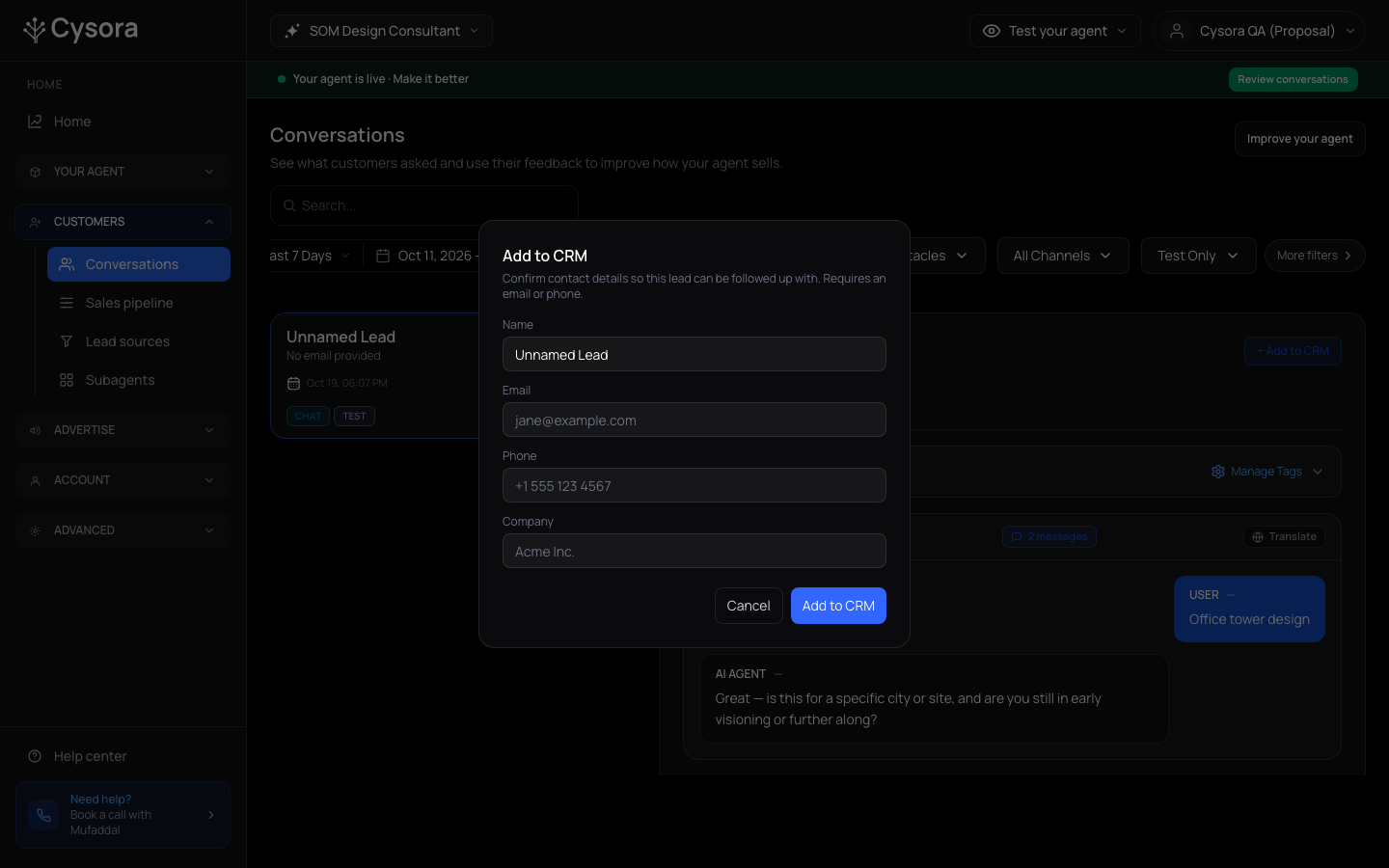
A lead can come from a conversation or be added by hand. In Conversations, open a conversation and choose + Add to CRM: confirm the Name, Email, Phone and Company. It needs at least an email or phone. On Sales pipeline, + Create lead adds one without a conversation.
Make it fit your process
- Customize chooses which columns show. Export CSV downloads your pipeline.
- Settings holds pipeline settings and Automations, which control custom fields and rules such as when a lead is included.
- If your agent takes payments, Payment, Paid and Balance due columns appear, and a lead's Orders show in its panel.
Check it worked
- A lead you change shows the new stage and owner when you reopen it, with the change recorded in Activity.
If it doesn't work
- The pipeline is empty.
- Customers appear after they share details or book a call. Finish your launch plan, then check Conversations for real chats.
- A lead you expected isn't there.
- Check the filters at the top (stage, owner, follow-up, date) aren't hiding it, that you're on the right tab (Open, Closed or All), and that you're on the right agent.
Related guides
- Review conversations and take over a chatRead what your agent said to each customer and switch a conversation to manual when you want to reply yourself.
- Take payments with StripeConnect your own Stripe account and let your agent take a payment or deposit.
- Invite your teamInvite teammates, choose their role, and decide which agents they can see.