
Help / Configure your agent
Take payments with Stripe
Your agent can take a payment, or a deposit, at the end of the conversation. The money goes to your own Stripe account; Cysora never holds it. You connect Stripe once, then switch on Take payment in Next steps.
What you need
- A Stripe account.
- Payments enabled for your Cysora account. If you don't see the Payments connection, ask Cysora to enable it.
- A Next steps step and a pricing or quote step for the agent to charge.
Connect Stripe
- 1
Create a restricted key
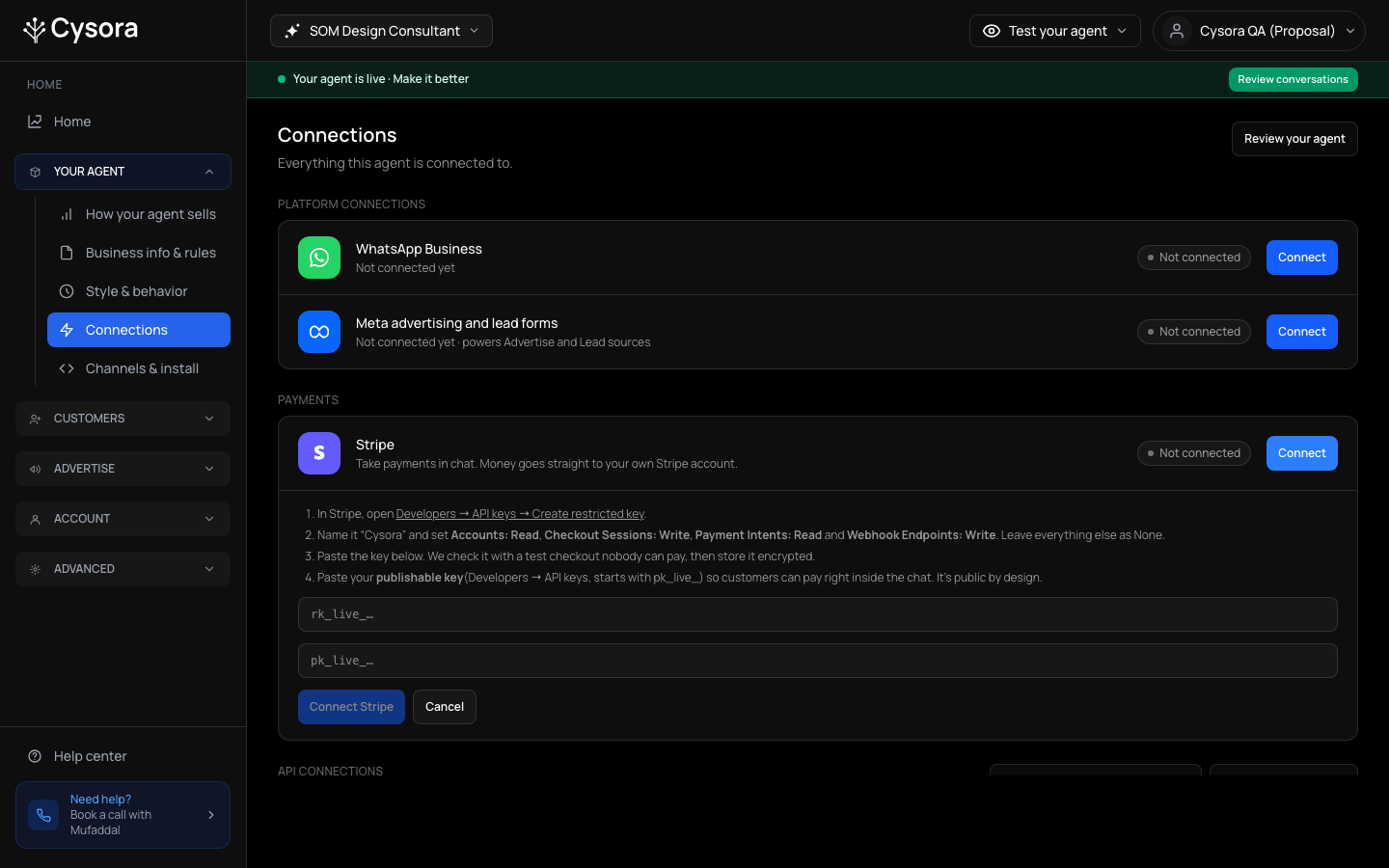
In Stripe, open Developers, then API keys, then Create restricted key. Name it "Cysora" and set Accounts: Read, Checkout Sessions: Write, Payment Intents: Read and Webhook Endpoints: Write. Leave everything else as None. Don't use your secret key (it starts with sk_).
- 2
Copy your publishable key
From the same Stripe account and mode (test or live), copy the publishable key (Developers, then API keys; it starts with pk_). It is public by design, and lets customers pay right inside the chat. Both keys must be from the same account and mode.
- 3
Open Connections
In the sidebar, choose Connections. Under Payments, find Stripe and choose Connect. Paste the restricted key (rk_…) and the publishable key (pk_…), then choose Connect Stripe.
- 4
Test checkout
Run Test checkout to confirm the keys belong together. Nothing is charged.
Turn on Take payment
- 1
Open Next steps
In How your agent sells, open Next steps and choose the option, or Add option.
- 2
Choose Take payment
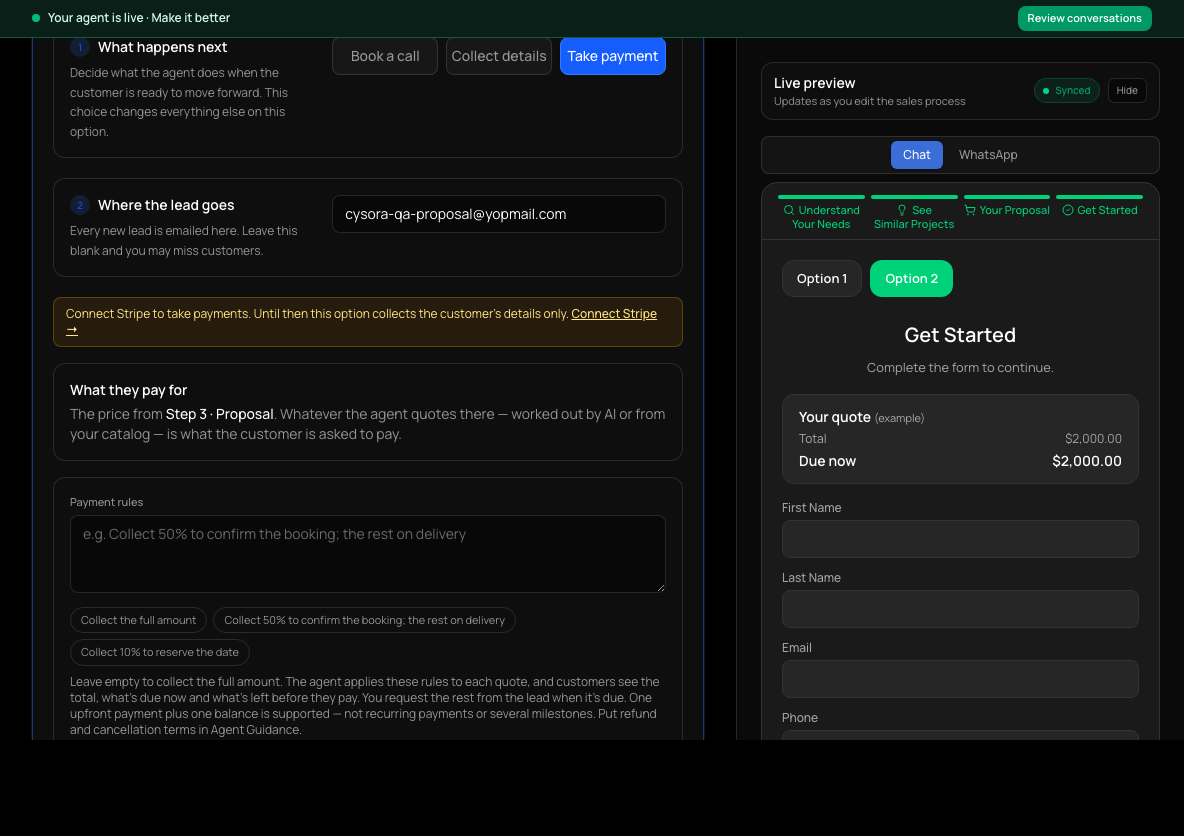
Under What happens next, choose Take payment.
- 3
Check what they pay for
What they pay for shows the pricing step the payment charges: whatever the agent quotes there is what the customer is asked to pay.
- 4
Write the payment rules
In Payment rules, say in plain words what to collect up front, for example "Collect 50% to confirm the booking; the rest on delivery". Leave it empty to collect the full amount. One upfront payment plus one balance is supported, not recurring payments.
- 5
Add an after-payment message
Optional: write the message customers see once they have paid.
- 6
Save
Choose Save step.
Where customers pay
In your website chat and on your Page, customers pay right inside the conversation with Stripe. On WhatsApp they get a secure payment link that works for 72 hours.
After a customer pays
The lead moves to Won when a first payment is verified. If a balance is still due it stays open until paid. In Sales pipeline, open the lead and look at Orders. Use Request remaining balance or Get payment link to get a link you can send. Cysora does not email pay links to customers; you send them. Home shows payments collected and balance outstanding.
Check it worked
- Payments on Connections shows Stripe as connected and the test checkout passed.
- In Test your agent, the payment option shows an example quote with the amount due now. Nothing can be paid from a test.
If it doesn't work
- A red alert says your Stripe connection needs attention.
- Open Connections and reconnect Stripe, or retry setup. Check the key still has the four permissions.
- Continue to payment is disabled in the website chat.
- The agent doesn't have a ready Stripe connection yet. Finish Connect Stripe and Test checkout.
- You are switching Stripe accounts.
- Disconnect the current one first. Cysora won't let a different account silently replace it, so orders never change merchant.
Related guides
- Set up next steps: book, sign up or payChoose what happens when a customer is ready: book a call, fill in a form, or pay.
- Follow up leads in Sales pipelineSet each customer's stage, owner and next follow-up, and read their conversation.
- Fix a broken integrationUnderstand the red alert in your dashboard and where each problem is fixed.