
Help / Configure your agent
Set up next steps: book, sign up or pay
Next steps is the last step of your sales process: what happens when a customer is ready to move forward. You can offer one option or several, such as booking a call, collecting details, or taking a payment.
What you need
- An agent with a Next steps step (the last step) in How your agent sells.
Open and edit your options
- 1
Open the step
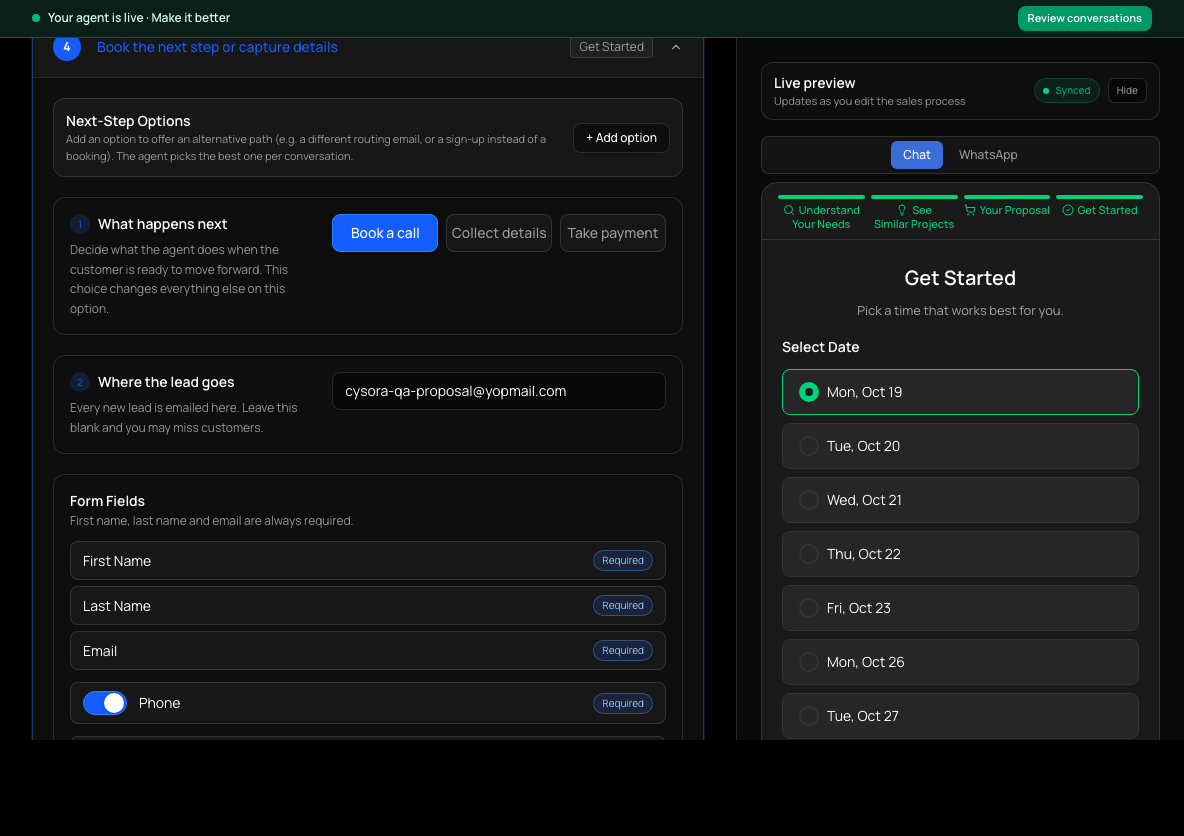
In How your agent sells, open the last step (it's named for what it does, such as "Book the next step or capture details"). It summarizes what happens, your availability and where the lead goes.
- 2
Edit details
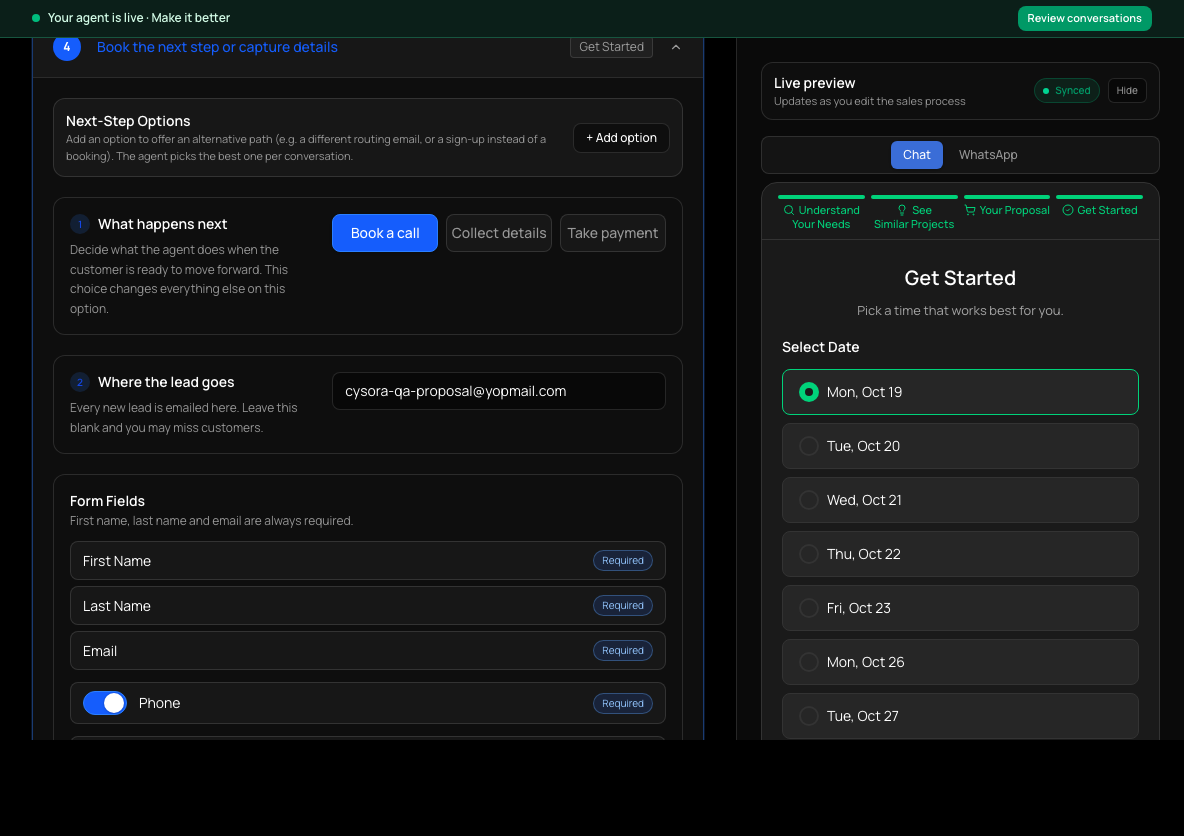
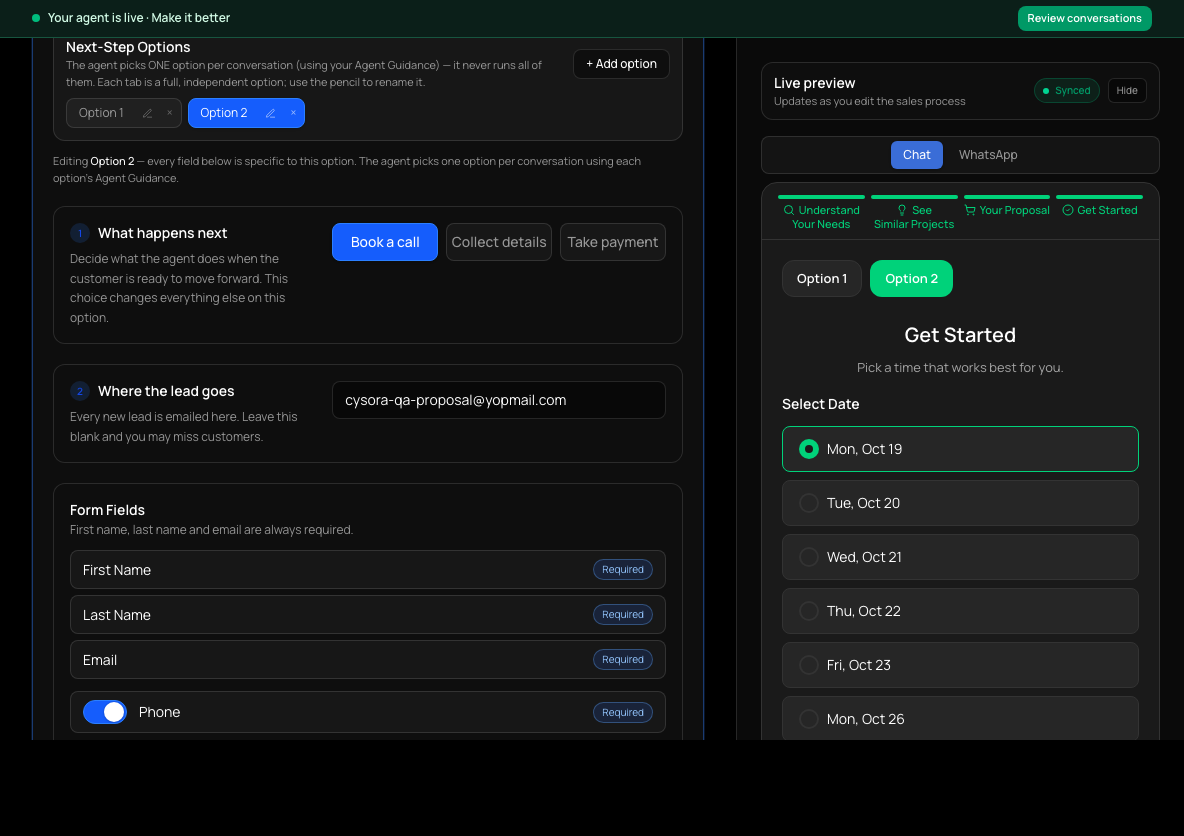
Choose Edit details. The Next-Step Options section shows a tab for each option (Option 1, Option 2) with a + Add option button. Each option is complete on its own: use the pencil to rename it.
- 3
Choose what happens next
Under What happens next, choose Book a call, Collect details or Take payment. This choice changes the other settings on the option.
- 4
Set where the lead goes
Under Where the lead goes, enter the email address that is notified of every new lead. Leave it blank and you may miss customers.
- 5
Write the Agent Guidance
In Agent Guidance, tell the agent when to use this option and what to collect or confirm, in plain words. With several options the agent reads every option's guidance and picks one per conversation.
- 6
Save
Choose Save step.
The three options
- Book a call: the customer picks a time. Set Form Fields, Time Slot Duration (30 minutes or 1 hour), Meeting Location (Virtual or In-Person, with a Web Conference Link for virtual), Availability (which days and hours), and Time Zone. Customers can only choose times you've made available.
- Collect details: the customer fills in a form, and you can send them on to a Signup URL. First name, last name and email are always required; you can also ask for a phone number, a company, and up to three custom fields.
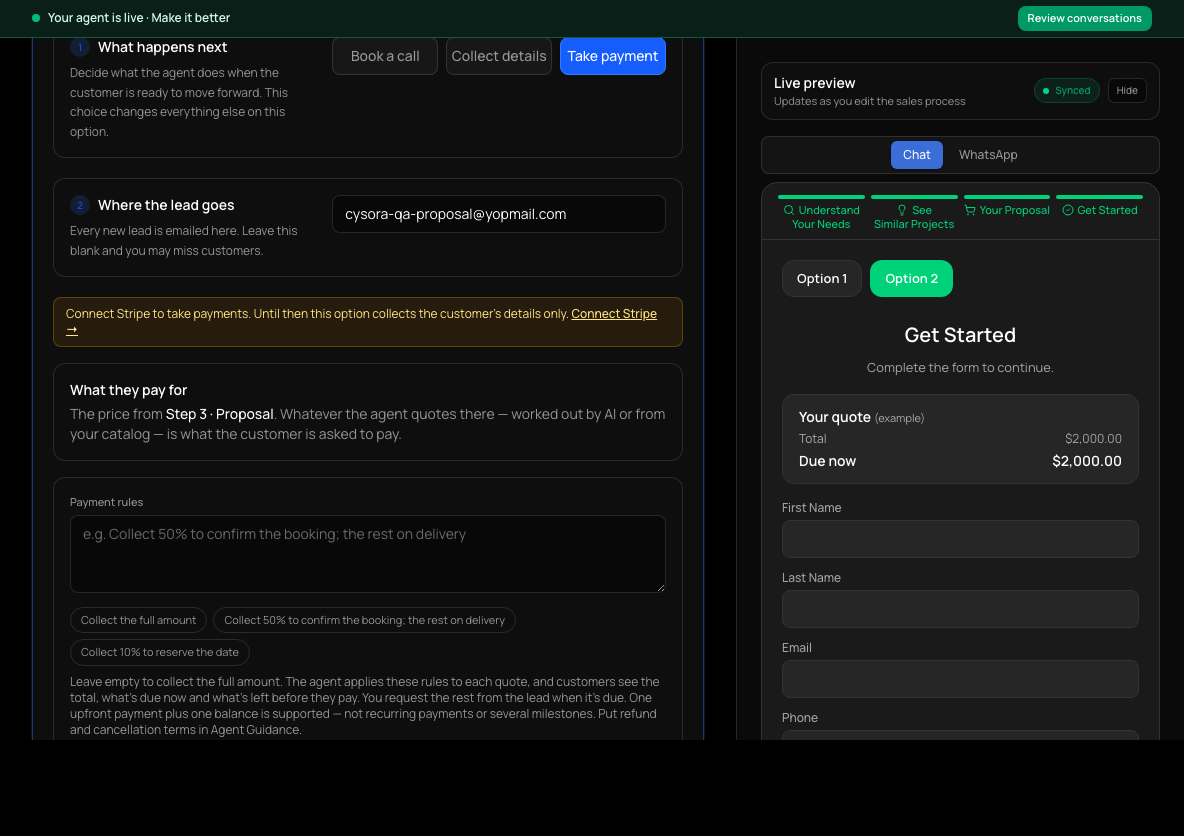
- Take payment: collects details and then a payment through your own Stripe account. See Take payments with Stripe.
Offering more than one option
Choose + Add option to add another. Each option has its own name, guidance and settings; booking hours, form fields and delivery settings start as a copy of the first option. On the website and your hosted page, customers see each option as a button. On WhatsApp the agent chooses. The × on a tab removes that option.
Reminders for booked calls
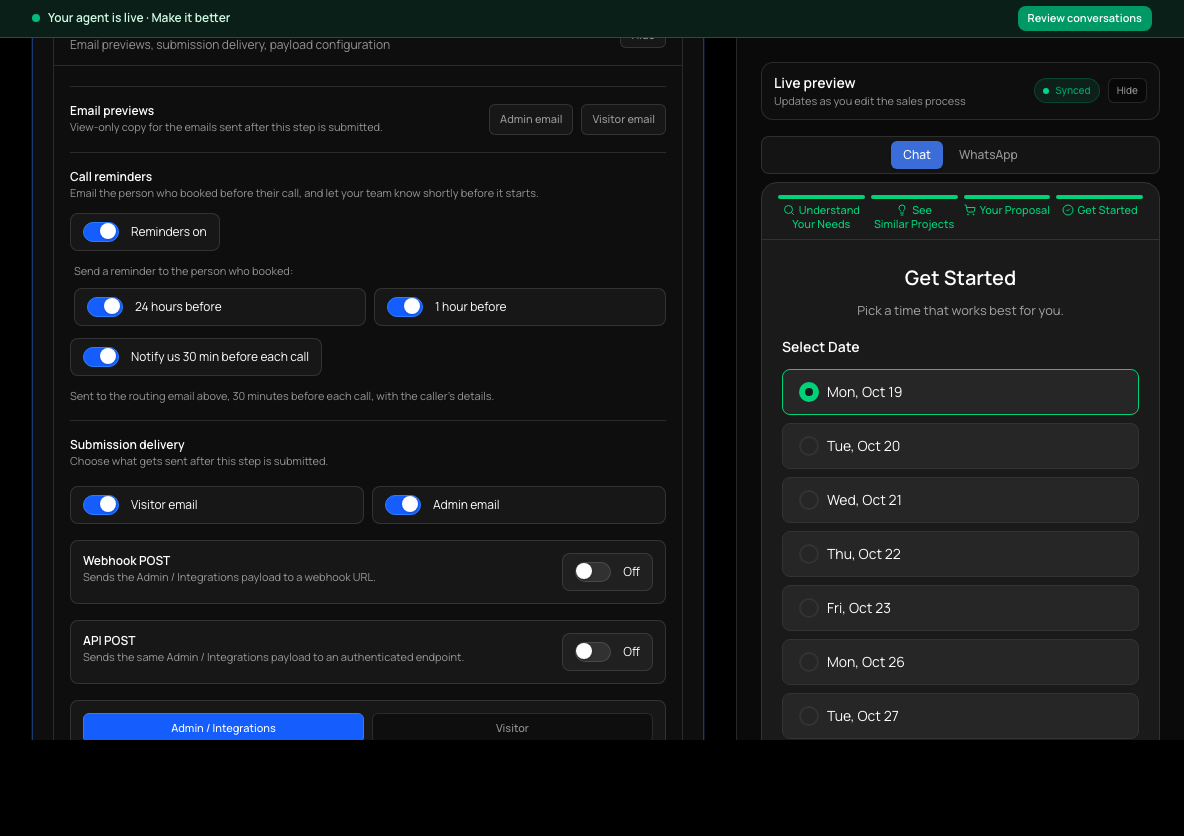
For Book a call options, reminder emails to the customer 24 hours and 1 hour before are on by default, in your business's name, and you get a prep brief shortly before the call. Change this under Advanced Settings, Call reminders. Email previews there shows the Admin email and Visitor email the step sends. Customers get a link in their emails to reschedule or cancel without contacting you.
Check it worked
- Open Test your agent and take the conversation to the end: the customer sees the options you set.
- Nothing is delivered in a test: no lead, email or booking is created.
If it doesn't work
- You didn't get an email for a new lead.
- Check the email under Where the lead goes is correct on every option.
- No times show for booking.
- Check Availability has days and hours switched on, and the Time Zone is right.
- A Take payment option only collects details.
- Stripe isn't connected yet. Choose Connect Stripe in the option, or see Take payments with Stripe.
Related guides
- Take payments with StripeConnect your own Stripe account and let your agent take a payment or deposit.
- Set up how your agent sellsEdit the steps your agent walks customers through: what it asks, what it recommends, and how it closes.
- Test your agentTry your agent as a customer would, on the website chat or WhatsApp, before anyone else sees it.