
Help / Configure your agent
Control what your agent recommends
If your agent recommends products, properties or services from a list, that list is its catalog. You choose what the agent can see and say about each item, and how many options it shows at once.
What you need
- An agent with a Recommend products or services step.
Where to adjust it
- 1
Open the step
In How your agent sells, open the Recommend products or services step.
- 2
Open Advanced Settings
Choose Edit details, then Advanced Settings. Record fields lists every catalog field.
- 3
Review each field
Each field has Display to user (customers see it, and the agent can state it) and Use in recommendations (the agent can filter and weigh on it). Set both for every field.
- 4
Set how many options to show
Under Recommendations per reply, set how many options the agent shows at once, from 1 to 10. Three to five is easy to compare in one message.
- 5
Save
Choose Save step.
Choosing the switches
- Facts customers compare or ask about, like price, size or location: turn both Display to user and Use in recommendations on.
- Facts they ask about but never filter by, like a link or brochure: Display to user on, Use in recommendations off.
- Internal details like ids: turn both off. With both off, the agent cannot see the field at all. Hide unavailable stock keeps items that can't be bought out of recommendations.
- If the agent can't tell customers something they ask for, a useful field probably has both switches off.
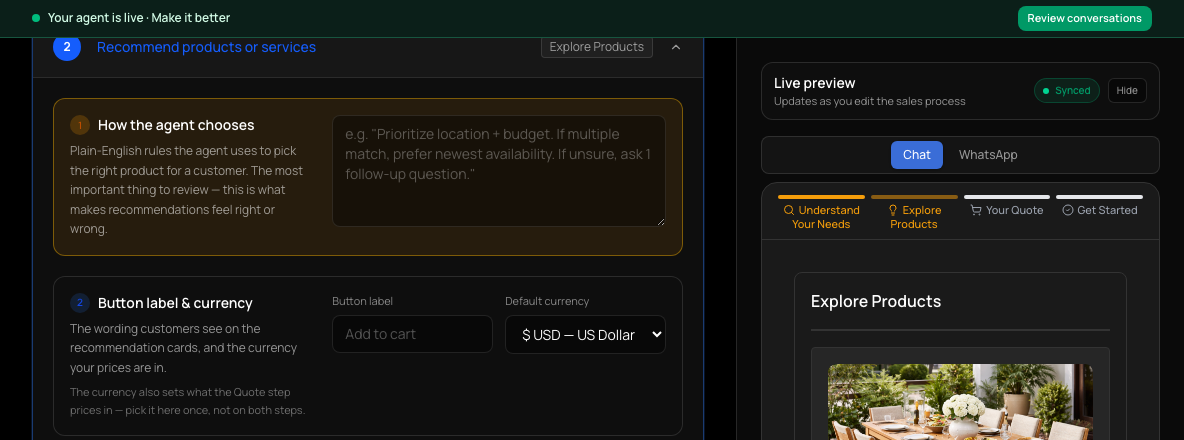
How the agent chooses
The How the agent chooses field tells the agent how to match customers to items. Describe what matters when choosing between eligible items. Use the field switches and Recommendations per reply for visibility and counts instead of repeating those settings in prose. Test a realistic request and check the recommended items, availability and stated facts against your catalog.
Keeping the catalog up to date
A catalog can be entered by hand or kept in sync with an external data source on a schedule (hourly, daily or weekly). Connecting a data source is set up with your Cysora account rep: choose Book a call in the dashboard. If a sync stops or fails, a red alert appears on every page.
Check it worked
- In Test your agent, ask for something the catalog covers: the agent recommends matching items and states the facts you turned on.
If it doesn't work
- The agent can't tell customers a fact they ask for.
- Find the field in Record fields and turn on Display to user (and Use in recommendations if it should filter).
- The agent shows too many options.
- Lower Recommendations per reply.
- A red alert says your catalog isn't updating.
- Open the alert, and see Fix a broken integration.
Related guides
- Set up how your agent sellsEdit the steps your agent walks customers through: what it asks, what it recommends, and how it closes.
- Fix a broken integrationUnderstand the red alert in your dashboard and where each problem is fixed.
- Test your agentTry your agent as a customer would, on the website chat or WhatsApp, before anyone else sees it.