
Help / Publish
Connect a Plivo phone number
Connect a Plivo phone number so your agent answers calls on it. You paste your number, Auth ID and Auth Token, and Cysora creates the voice application and assigns your number to it.
What you need
- A Plivo account with a voice phone number you own.
- Your Plivo Auth ID and Auth Token, from your Plivo console.
- A number that is free to hand over. Connecting replaces how that number currently handles voice calls.
Connect your number
- 1
Open the Phone tab
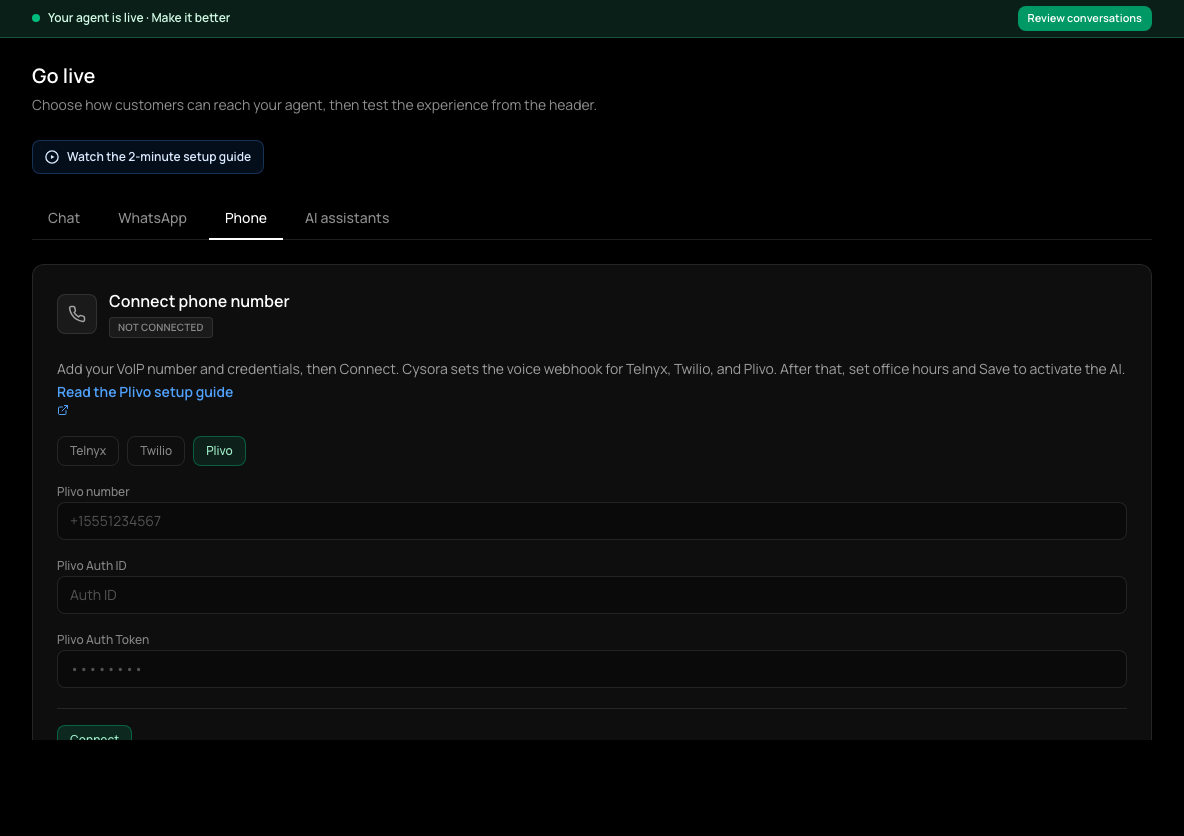
In the sidebar, choose Go live (shown as Channels & install once your agent is live), then the Phone tab.
- 2
Choose Plivo
Select Plivo as the provider.
- 3
Enter your number
Type your Plivo number with its country code, like +15551234567.
- 4
Paste your credentials
Enter your Plivo Auth ID and Plivo Auth Token. Cysora stores the token encrypted and never shows it again.
- 5
Connect
Choose Connect. Cysora creates (or reuses) an application called "Cysora Voice" in your Plivo account and assigns your number to it.
Set transfer and office hours, then go live
- 1
Transfer number
Optional. Enter a number (with country code) where calls can be passed to a person. Leave it blank and your agent handles every call itself.
- 2
Language
Enter the language code the agent should speak, such as en.
- 3
Office hours
Set Office hours start and end (like 09:00 and 17:00) and your Timezone (like America/New_York). These hours control when the AI answers, not just when a person is available. Outside the configured hours, callers hear an after-hours message and the call ends.
- 4
Save and activate
Choose Save & activate. The button shows Saved — AI live when your agent is answering.
Check it worked
- The Phone tab shows your number as connected and your agent as live.
- Call the number from another phone: your agent answers.
If it doesn't work
- Connect says the Auth ID and Auth Token are required.
- Fill in both fields before choosing Connect.
- Calls ring but your agent doesn't answer.
- Check you chose Save & activate, not just Connect, and that the time is inside your office hours.
Related guides
- Connect a Telnyx phone numberConnect a Telnyx number so your agent answers calls, then set transfer and office hours.
- Connect a Twilio phone numberConnect a Twilio number with your Account SID and Auth Token so your agent answers calls.
- Test your agentTry your agent as a customer would, on the website chat or WhatsApp, before anyone else sees it.