
Help / Publish
Put your agent on your website
One snippet puts your agent's chat on your website. It is the same snippet for your whole account, so adding agents later never means pasting it again.
What you need
- A website where you, or the person who manages it, can add code to every page.
- An agent you have tested.
Install the snippet
- 1
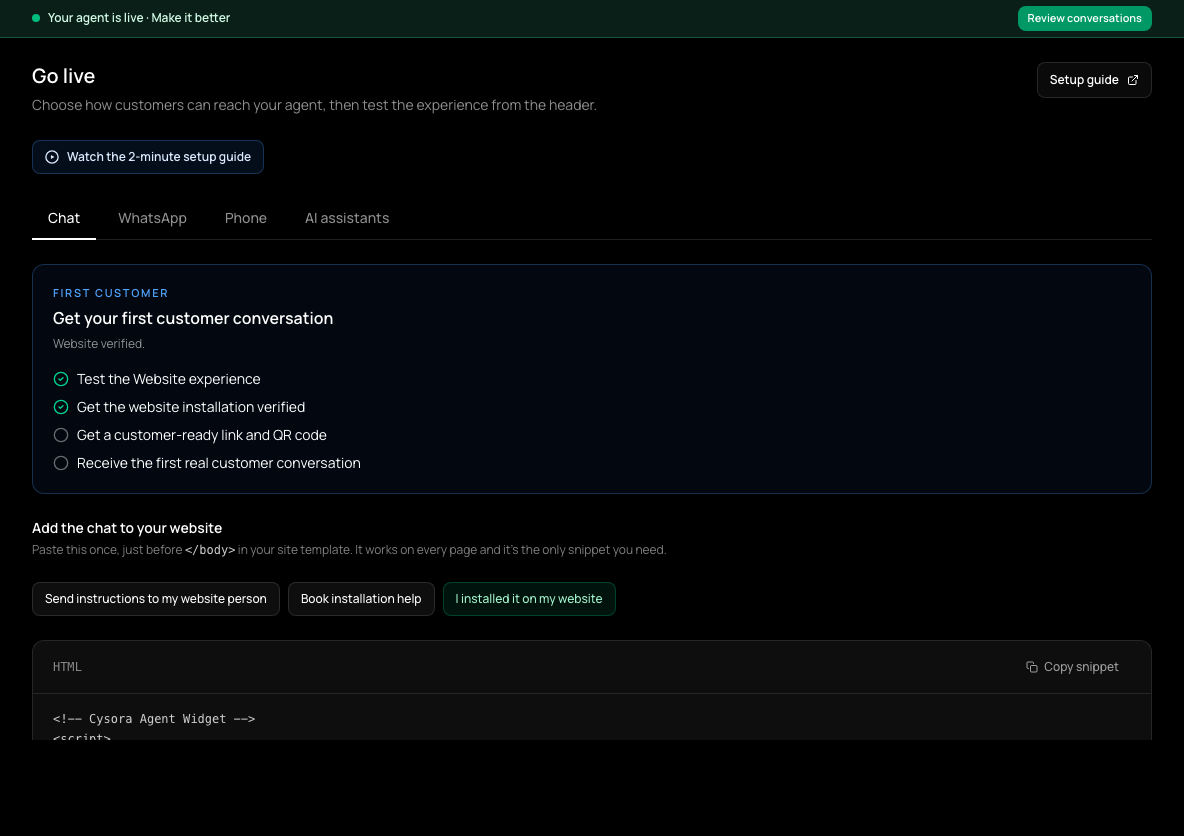
Open Go live
In the sidebar, choose Go live (shown as Channels & install once your agent is live), then the Chat tab.
- 2
Copy the snippet
Under Add the chat to your website, choose Copy snippet.
- 3
Paste it on every page
Paste it into your site's HTML just before the closing body tag. A site-wide template, footer setting or tag manager is easiest.
- 4
Publish your site
Publish the change on your live domain, not only a staging copy.
- 5
Tell Cysora
Optional: choose I installed it on my website to record that you have deployed it. Verification still waits for a real chat load.
If someone else manages your website
On the same tab, choose Send instructions to my website person. It copies a ready-to-send message with your agent's name and the snippet. Book installation help books a call with Cysora instead.
If you have more than one agent
There is nothing extra to set up. Each agent greets on the part of your site it was built from, and your main agent greets everywhere else. You can pick the main agent, and add page rules if you need them, on the Routing tab of Go live.
Check it worked
- Open your live site: the chat appears.
- On Go live, the installation shows as verified. This happens automatically the first time the chat loads on your real domain, so copying the code alone does not complete it.
If it doesn't work
- The snippet is pasted but the installation never shows as verified.
- It is usually not published yet, or it went on a staging site. Check the snippet is on a published page of your live domain, then load that page.
- You installed the snippet a while ago.
- Re-paste the current snippet. Newer snippets include a link that lets customers' AI assistants find your agent.
Related guides
- Test your agentTry your agent as a customer would, on the website chat or WhatsApp, before anyone else sees it.
- Share a hosted linkGet a Cysora-hosted page for your agent that you can share anywhere, no website needed.
- Connect WhatsAppConnect your WhatsApp number through Meta's signup window so your agent can answer WhatsApp messages.